), you can add a CSS class called **launch-popup** to that paragraph tag. Here’s what the HTML code would look like. `
Click to launch a cool popup.
` Once you add **.launch-pop** to the **Extra CSS Selectors** setting, your popup displays whenever there’s a click on a paragraph tag that has the **launch-popup** class. 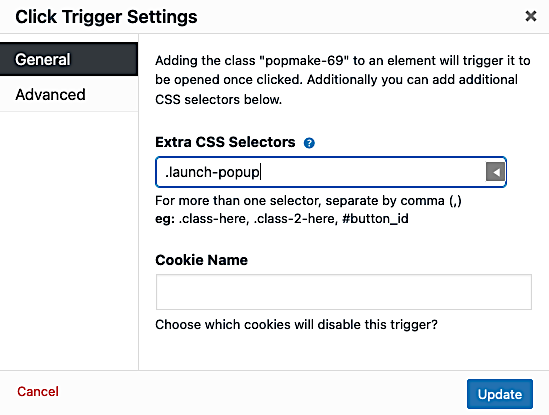 **Pro tip**: If you want *clicks* on other elements to display the same popup, add those element’s CSS selector class or ID to the Extra CSS Selectors settings separated by a comma. E.g., `.launch-popup`, `#my-cool-button`, `.launch-this-popup-too`. Learn more about adding multiple selectors in our [beginner's guide to popup triggers](https://wppopupmaker.com/docs/getting-started/a-beginners-guide-to-popup-triggers/#extra-css-selectors). ### Link Options Not only can you add CSS class and ID selectors for your triggers, but you can also add what's called [link attribute selectors](https://developer.mozilla.org/en-US/docs/Learn/CSS/Building_blocks/Selectors/Attribute_selectors). In the **Extra CSS Selectors** input field, click on the left arrow icon  to see the link options. 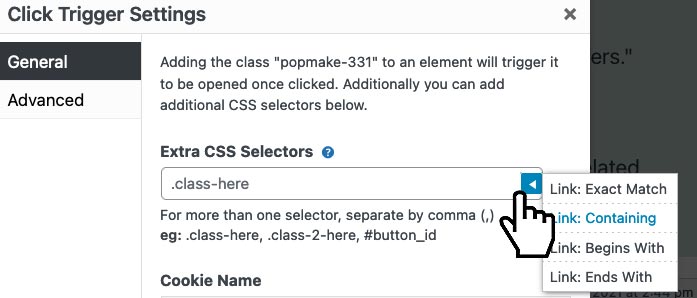 There are 4 link options to choose from: 1. **Exact Match**: For example, "https://myawesome.site" will automatically create click open triggers for all links on your site that exactly match "https://myawesome.site". 2. **Containing**: Using "awesome" for this option creates click open triggers for any link that has the word "awesome" in it. 3. **Begins With**: Using "https://myawesome" for this option creates triggers for any link that begins with "https://myawesome". 4. **Ends With**: Using ".site" for this option creates triggers for any link that ends with ".site". Select the **Link** option you want from the dropdown. Change the placeholder in between the double quotes (") to the link you want to match. In the example below, you would change the word *contains** *to the word you need to match inside the link you want to trigger your popup. 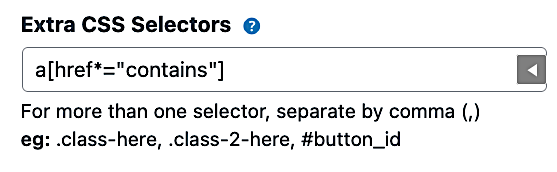 Get first-hand experience with a live demo of all 4 link attribute selectors on CodePen. [Popup Maker Trigger Link Option Examples](https://codepen.io/marklchaves/embed/preview/GRmYvNN?default-tab=css%2Cresult&editable=true) Pro tip: Do you want to save time finding the CSS selector you need to add? Then, you need to try out our handy Get Selector tool in our top admin bar. Learn more in our [Getting CSS Selectors](https://wppopupmaker.com/docs/triggering-popups/getting-css-selectors/) help guide. ### Cookie Name To set the **Cookie Name** field, you'll need to have a [cookie set up](https://wppopupmaker.com/docs/getting-started/popup-maker-glossary-of-terms/#cookies) for your **Click Open** trigger. No worries if you don't have a cookie yet. Popup Maker conveniently lets you add a new cookie for your trigger right from the **Cookie Name** setting field. Click the **Cookie Name** input field. Select an existing cookie or **Add New Cookie** if you don't have one yet. 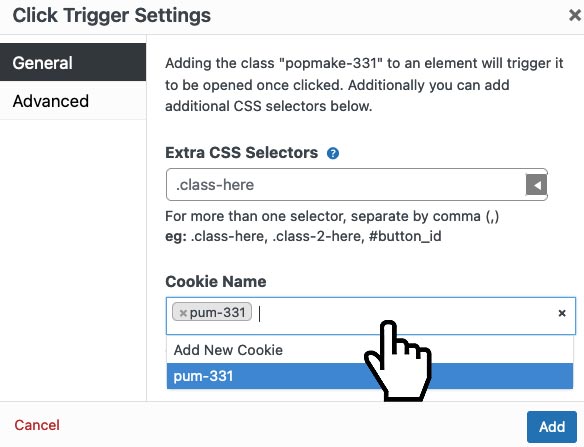 Popup Maker will have a default cookie named `pum-nnn` (where *nnn* is the popup's ID number) ready for you to use. Or, you can provide a custom name for any cookie you set up. Get the full details for creating popup trigger cookies in our [Cookies options guide](https://wppopupmaker.com/docs/controlling-popups/popup-settings-box-cookies-option-settings/#add_new_cookie). ## Advanced Sometimes you'll want to have a download link that also launches a popup. Here's an example of what that HTML would look like. ``` Download a file and launch a popup. ``` If you want a link for a **Click Open** trigger and have that same link download a file, no problem. You'll need to click on **Advanced** and check the **Do not prevent default click functionality** checkbox. See below. 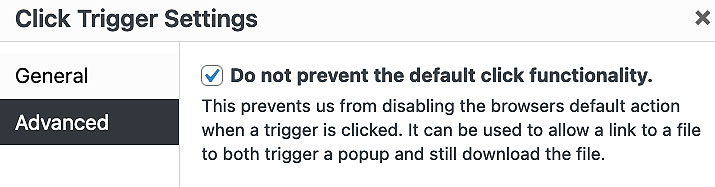 With that option checked (turned on), the code above can now launch popup #331 (trigger popmake-331) and simultaneously open a file download dialogue window (download attribute). If you didn't check that option, only the popup would show. The file download wouldn't display. This is great if you want people to [subscribe before downloading files](https://youtu.be/zml-xz78o2Q).