Ever wanted to grab your visitors’ attention with a perfectly timed popup? Whether you’re looking to grow your email list, showcase a special offer, or simply share important information, this guide has got you covered.
I’ll walk you through creating a popup using two powerful WordPress tools: SeedProd and Popup Maker. By the end of this tutorial, you’ll have a popup that triggers when visitors click a button on your SeedProd-designed page.
What You’ll Need
For this guide, you’ll only need Popup Maker – a free WordPress plugin that’s a game-changer for growing your email list and boosting sales. What makes it stand out? It’s designed to be beginner-friendly without skimping on advanced features.
To install Popup Maker, log into your WordPress dashboard.
Head to Plugins > Add New.

In the search bar on the top right, type “Popup Maker”.

Click “Install” on the first result.

Once installation is complete, hit “Activate”.

Boom! You’re ready to create your first popup.
Create Your Popup
Creating a popup with Popup Maker is a breeze. Here’s how:
In your WordPress dashboard, navigate to Popup Maker > Create Popup.

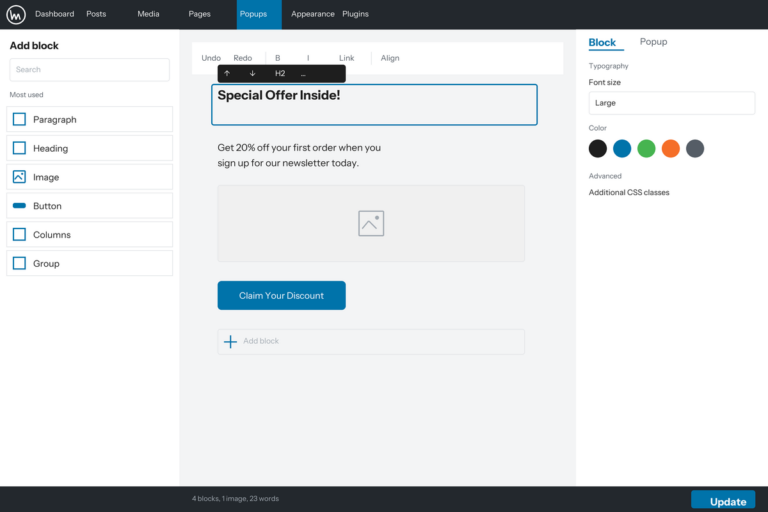
This will take you to the popup creator which will allow you to customize the look and feel of your popup:

Give your popup a name (don’t worry, this is just for you).
Add a Popup Title that visitors will see.
Use the content editor to add your popup’s content. Feel free to use WordPress content, shortcodes, or anything else you fancy.
Once you’re done customizing the content of your popup, scroll down to the Popup Settings section:

This is where you can customize who gets to see your popup, on what pages, and when.
For now, we just need to add a trigger.
Click “Add New Trigger”.

Select “Click Open” (if it’s not already chosen) and hit “Add”.

It will now show you the advanced settings for this trigger. Copy the popup class name – you’ll need this for the next step.

Click “Add” again to finalize the trigger.
Hit “Publish” to save your popup.

Link Your SeedProd Button to Your Popup
Now that your popup is ready, let’s connect it to your SeedProd button:
Open a page in SeedProd and edit an existing button (or add a new one).

In the settings section, open the Advanced tab.

Scroll down until you see the Attributes section:

Paste the CSS class name you copied earlier into the Custom Class field.
Save your page:

And you’re done! Now, whenever someone clicks that button on your site, your shiny new popup will appear.