🚀 Stop Losing Visitors — Turn Traffic into Revenue with Popup Maker Pro →

Get Started

Schedule WordPress Popups Automatically

Schedule WordPress Popups to Run Themselves

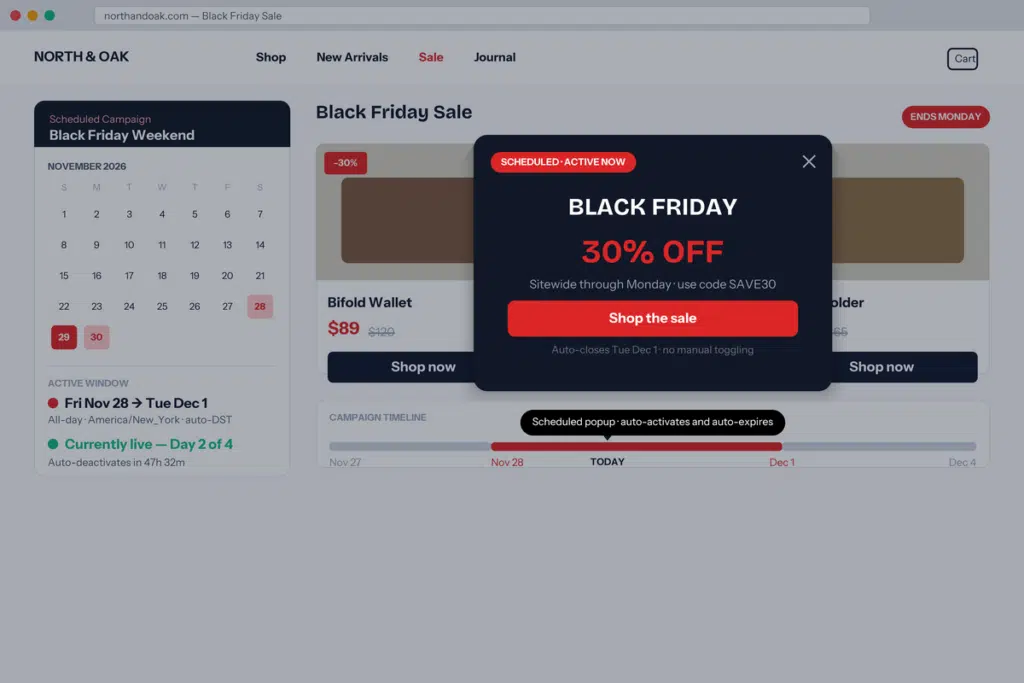
Manual toggling is how Black Friday sales run into December and support popups show up at 3 AM. Five scheduling modes activate and deactivate your popups automatically — with timezone and DST handled correctly.

Popup Scheduling Example

Popup Maker + Schedule WordPress Popups Automatically

Manual toggling is how Black Friday sales linger into December, how product launches miss their 9 AM window, and how support popups show up at 3 AM in someone else’s timezone. Scheduling solves all three.

Popup Maker Pro handles scheduling natively. Five modes cover every real pattern — one-time launches, ending dates, date ranges, specific-date lists, and recurring rules — with timezone and DST handled correctly.

Each mode is configured per-popup, under the popup’s Scheduling tab. You can use any mode alongside Popup Maker’s 42 advanced targeting conditions — schedule and audience work together.

Stack Multiple Schedules on One Popup

One popup can hold multiple schedules, combined with OR logic — the popup is active if any schedule matches. This replaces the pattern of cloning a popup for every promotional window.

  • Recurring holiday sales on one popup — Black Friday range + Cyber Monday range + Boxing Day range + Valentine’s Day range, all stacked. The popup self-activates across every window, stays dark between them. One library entry instead of four.
  • Seasonal + event hybrid — “Free shipping” popup using Office Hours (Mon-Fri 9 AM – 5 PM) plus a Range Schedule for Black Friday weekend. Active during business hours year-round AND continuously through the holiday window.
  • Multi-phase launch — Pre-launch teaser + launch week + post-launch push, stacked as three Range Schedules. One popup, three phases, no cloning.
  • Irregular recurring events — Chosen Dates for webinar days + Range for registration windows, combined so the same CTA handles both.

Schedules also layer with Popup Maker’s 42 targeting conditions via AND logic — so you can build “active during Black Friday OR Cyber Monday, AND only on product pages, AND only to non-subscribers.”

Timezone Handling That’s Actually Correct

Timezone logic is where most scheduling tools get thin. Popup Maker Pro handles it two ways, per popup:

  • Server Time (default) — uses your WordPress timezone. Every visitor sees the popup activate at your time. Right for coordinated launches and business-hours messaging aligned to your office.
  • Local Time — uses the visitor’s browser timezone. Every visitor sees the popup in their local time. Right for office-hours popups that should be 9 AM-5 PM everywhere, or time-of-day greetings that actually land when they should.

DST is handled automatically via IANA timezone identifiers — 9 AM local stays 9 AM local through every spring-forward and fall-back. Office Hours and Chosen Dates evaluate the day in your chosen timezone first, so “Monday 9 AM EST” means Monday-in-New-York, not whichever day the server thinks it is.

Pair It With

Scheduling works best as one layer in a full campaign setup:

  • Exit Intent — run a scheduled exit-intent offer only during a promo window. Black Friday popup fires on exit, only during the Black Friday range.
  • Advanced Targeting — 42 conditions let you combine schedule + audience. Black Friday popup, only on product pages, only to non-subscribers, only with items in cart.
  • Cookie controls — limit frequency so the same visitor doesn’t see the scheduled popup on every session.
  • Analytics Dashboard — Pro reporting shows scheduled-popup impressions, conversions, and rate, so you know which scheduled campaigns earned their slot.
Frequently Asked Questions

  • Do I have to toggle popups on and off manually for promos?

    No — that’s what scheduling replaces. Set a start date, end date, or date range when you build the popup, and it activates and deactivates itself. Black Friday, product launches, flash sales, seasonal promos — configure once and walk away.
  • Does it use my server time or the visitor's time?

    You choose per popup. Server time is right when you want synchronized timing (a launch at 9 AM your time, everyone sees it at your 9 AM). Local time is right when you want visitor-relative timing (office hours 9 AM-5 PM in every timezone, a birthday-style greeting in their local evening). Local time uses the visitor’s browser timezone via the standard Intl API.
  • What happens during daylight saving transitions?

    Automatic. Scheduling uses IANA timezone identifiers via date-fns-tz, so DST spring-forward and fall-back are handled transparently. A 9 AM EST schedule stays at 9 AM local through the transition — you don’t touch anything.
  • Can I schedule a popup for multiple specific dates that aren't a range?

    Yes — Chosen Dates mode takes a list of dates. Useful for weekly webinars, recurring live events on irregular days, or a campaign that runs on specific calendar dates across months.
  • Can I combine multiple schedules on the same popup?

    Yes — and this is one of the most useful capabilities. Multiple schedules on a single popup use OR logic: the popup is active if ANY schedule matches. Stack a Black Friday range with a Cyber Monday range with a Boxing Day range on one popup, and it self-activates across all three windows without any manual switching. Same pattern for recurring Q1/Q2/Q3/Q4 seasonal windows or multi-phase launches.
  • Can I combine scheduling with other targeting conditions?

    Yes. Scheduling is one layer in Popup Maker Pro’s targeting stack — combine it with URL conditions, user conditions, cookie conditions, etc. Example: show a Black Friday popup only on product pages, only to non-subscribers, only during Nov 24-27 (scheduling) AND only during business hours (second Office Hours schedule, OR-combined).
  • What if my WordPress site is on a server with only a GMT offset, not an IANA timezone?

    Still works. Scheduling falls back to GMT offset when a full IANA timezone isn’t configured. You’ll lose automatic DST handling for the offset fallback, but fixed-offset schedules compare correctly. Set your WordPress timezone to a city (Settings → General → Timezone → ‘New York’ instead of ‘UTC-5’) to enable full DST auto-handling.
  • On Office Hours or Chosen Dates, what counts as 'today'?

    The day is evaluated in your chosen timezone first, then the time window is checked. So ‘Monday 9 AM EST’ means Monday-in-New-York — when it’s already Tuesday in Tokyo but still Monday in LA, the schedule behaves correctly based on the configured timezone. No timezone-boundary bugs.
  • Is scheduling in the free plugin?

    No. Scheduling is a Popup Maker Pro feature — it replaces the legacy Scheduling addon. Free Popup Maker handles basic display rules; scheduling and the full 42-condition targeting library are Pro.
  • What if I forget to turn off a popup after an event ends?

    You won’t — that’s the point of End Schedule and Range Schedule. The popup stops showing automatically at the configured end date and time, even if you forget to log in. Expired popups stay in your library, available to reuse or update for the next cycle.
Details

Schedule WordPress Popups Automatically

Feature

Five scheduling modes — start, end, date range, specific dates, and recurring office hours — with full timezone and DST handling. Set it and forget it.

Get Started

Quick Links

Easy Installation

Create your first popup in minutes

Proven Support

Help is available when you need it.

Docs That Help

Help is available when you need it.

Ready to start poppin’?

Popups that don’t stop

If your ready to supercharge your site's popups, you'll want to check out our exciting list of premium features

Buy Now