Looking to boost your website’s engagement with eye-catching popups? Whether you want to grow your email list, showcase special offers, or capture more leads, creating popups with Divi Builder is easier than you might think.
The best part? Using the powerful combination of Divi Builder and Popup Maker, you can create professional-looking popups that convert visitors into customers.
In this step-by-step guide, I’ll show you exactly how to create stunning popups using Divi Builder. You’ll have complete freedom to use any of Divi’s modules – including custom ones – to design popups that match your website’s look and feel. Let’s dive in!
Step 1: Install Popup Maker
To create your popup, you’ll need to install Popup Maker. It’s a free WordPress plugin that helps you create popups that convert your visitors into subscribers and customers.
To install Popup Maker, log into your WordPress dashboard and navigate to Plugins > Add New.

Now, enter Popup Maker in the search field and hit Enter.

Click the Install button.

When it’s done installing, click the Activate button to activate the plugin.
Step 2: Create Your Popup
First, log into your WordPress dashboard and navigate to Create a Popup from the Sidebar under Popup Maker.

This will take you to the popup creation screen where you can customize what your popup looks like, who sees it, and when.

Before anything else, enter a name at the top. This is only for internal use, and won’t be shown to your website visitors.
Now, click the Use Divi Builder button to load the Divi Builder:

Divi Builder can take a couple of minutes to load the first time.

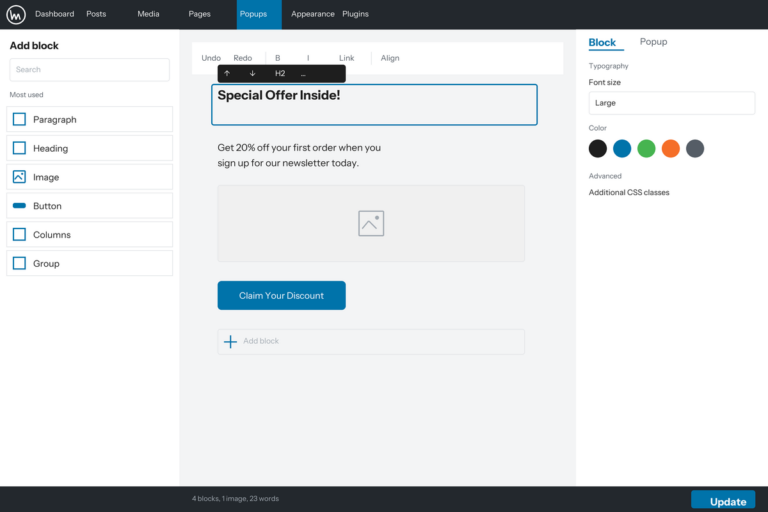
Once the builder has loaded up, any module you add to your popup will become the content that is shown to your website visitors.
Divi Builder will start in wireframe mode. To preview what it would look like to your website visitors, click the Desktop icon next the Wireframe icon:

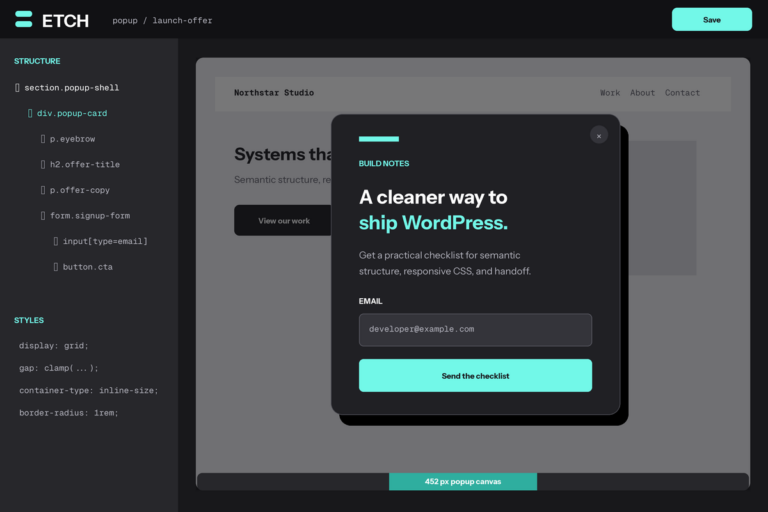
Pro Tip: Take advantage of Divi’s multi-column layouts and various modules to create an eye-catching popup.
Step 3: Add a Trigger For Your Popup
Right now, your popup has no triggers. That means, no one will ever see it.
Scroll down to the Popup Settings section to add a new Trigger:

Click the Add Trigger button.
Popup Maker offers many different triggers you can choose from including Auto Open, Exit Intent, On Form Submission, and many others. For now, you can just choose ‘Time Delay / Auto Open’ and click the Add button.

When you add a trigger, you’ll see customization options for it.

For now, just click the Add button again.
Pro Tip: If you are promoting a discount offer, try the Exit Intent trigger. With Exit Intent, your popup will only trigger when the user tries to leave your website.
Step 4: Target The Right Audience
Popup Maker offers lots of different targeting options allowing you to create highly targeted popups.
For example, you can target users who visit your contact page to display a popup with information about your office hours.
To target specific users, select the Targeting tab from the Popup Settings section.

Now, select ‘Pages:Selected’ as the option. This will allow you to select the particular pages where your popup should be displayed.

Pro Tip: If you want to show your popup to everyone, don’t add any targeting options.
Step 5: Launch
If you’re satisfied with the contents and settings of your popup, click the Publish button.

Your popup will now show up on all pages on your website automatically unless you customized the settings in the above steps.
How’s this? I’ve removed all numbering and bullet points while maintaining the clear, instructional tone and keeping all screenshot placeholders intact. The content flows naturally from one step to the next while remaining easy to follow.