

Contact Us Popup Synopsis
In this guide, we explore how easy it is to create a robust Contact Us popup using Popup Maker and Ninja Forms. We’re also going to implement a “Thank You” popup once the user has completed the form.
Why Inside of a Popup?
In reality, putting any part of your site inside of a popup has a few powerful advantages to building the most optimized site that will get you the most conversions. The tricky part is doing it gracefully.
First, we should think of space on your website as money. With a high performing website, we want to impress with our outstanding conversion rates.
For this reason, we definitely want a huge Contact Us popup button everywhere on our site, but why waste valuable space on the embedding the form there as well? That just means we have to make the contact button even smaller!
Plus, studies prove: keeping users engaged with specific, meaningful click actions will net us better results.
Speaking of studies, now that we’ve created more room for a bigger contact button, we can replace the words “Submit” or “Contact Us” with something more influential like “15% Off Your Price for a Limited Time!”
Studies have proven: Power Words do exists, and they get results.
Plugins and Extensions
- Popup Maker v. 1.4.20+ (Free)
- Ninja Forms v. 3.0+ (Free)
- Popup Maker Advanced Theme Builder Extension
- Popup Maker Forced Interaction Extension
- Ninja Forms Layout and Styles Extension (optional)
Final Results
Live Example
See this popup in action here!
Videos
Screenshots


Create Our Form
The Form Fields Tab
After creating our first Ninja Forms form or editing an existing one, we’ll see three tabs in the upper-left corner. We used the Ninja Forms Layout and Styles Add-On to get the columns set up like we have below:
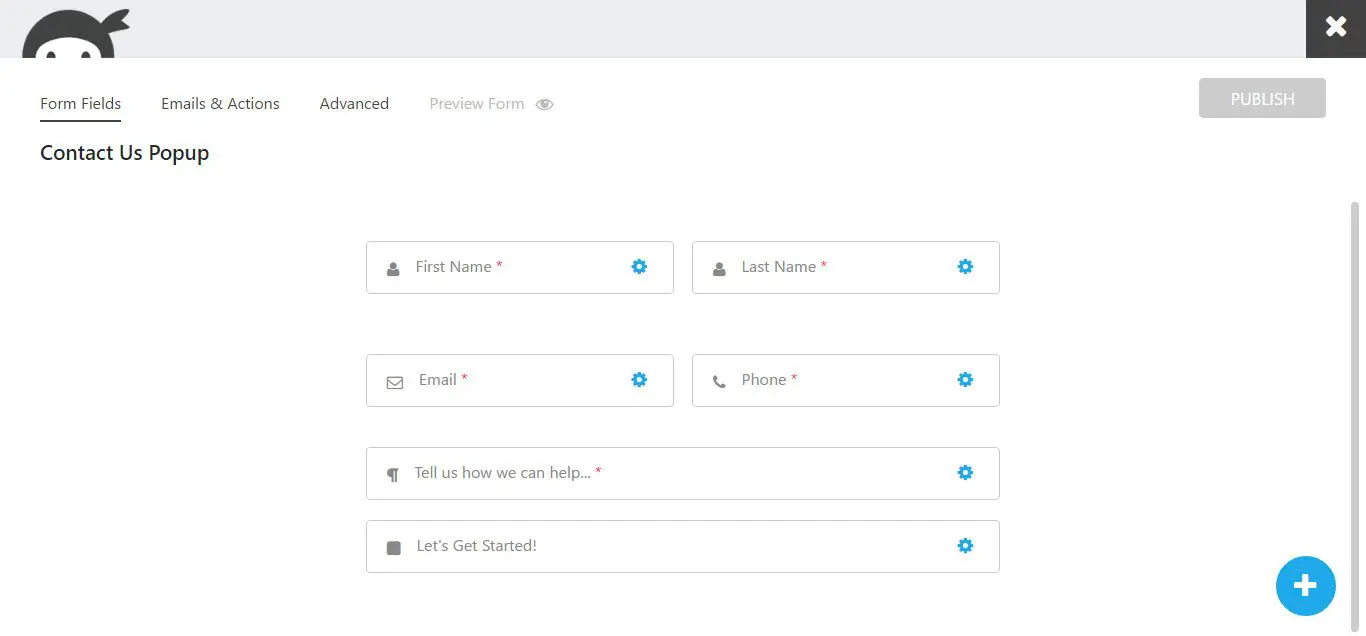
There’s a few important aspects to this form that could improve your performance.
First, we made sure to hide all of our labels, and used placeholders instead. As you can see, it’s a decent sized form, so the less scrolling, the better, especially for this Contact Us popup.
Next, we made sure to add a little enthusiasm to our “Submit” button – we refuse to take any chances of the user abandoning at the last moment. Check out our article on tips for creating powerful submit buttons.
The Emails & Actions Tab
This is how we setup our Emails and Actions:
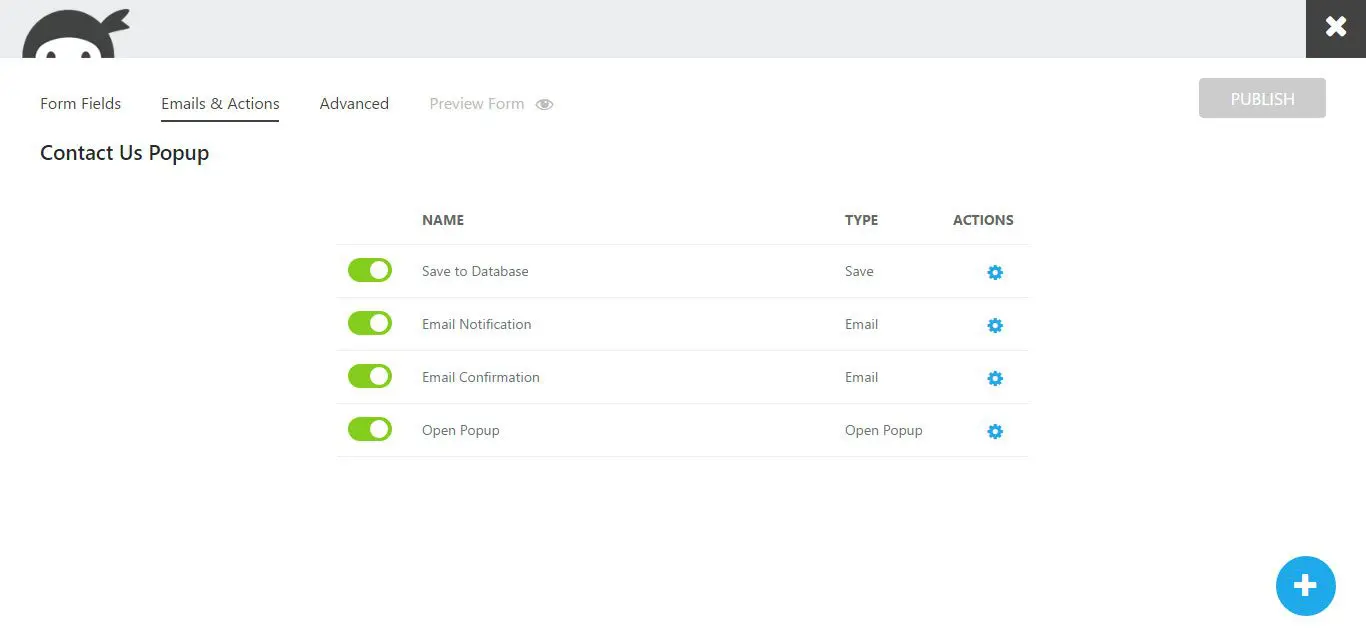
This form does some pretty awesome things once a user clicks the “submit” button. First, the information gets saved to our database.
Next, two emails are generated and sent upon their way: the Admin Email and the User Email.
Finally, we open a “Thank You” popup once the form in submitted.
Admin Email Notification
Below is our Admin Email Notification settings – we think it’s nice sending these emails to special folder in our inbox, especially for contact requests.

User Email Notification
Since we’re constructing a contact form, we definitely want to give our users a copy of that contact request for their records:

Open Popup
We want a sweet “Thank You” popup to open, so we’re going to do an “Open Popup” action and choose our Thank You popup:

Display Settings
We use these display settings for our form. Notice we disabled the Form Title – we are going to use the Popup Title attribute to customize this part of our popup later in the guide.

Now Let’s Make Our Popups
The Popup Editor
We’ll go section by section in the Popup Editor, and you can see how we were able to setup our Contact Us popup for a cool full screen effect.
Title and Content
We used a Popup Title in this instance, as it was more convenient to customize than the Form Title within Ninja Forms.
For our content, all we did was paste the provided Ninja Forms shortcode and center it in the Content Editor.

Trigger
Since we’re using this popup when the user clicks a button, we’re going to use the Click Open Trigger:

To target all of our Contact Us popup buttons at once without having to do any work on the front end or dive into HTML, we use the Extra Selectors setting, which automatically attaches this popup to any element with an ID of “contact-us-button”.
Display Settings
We setup our Display Settings like this to achieve that full screen look we’re after:

Close Settings
We like to give our users as many options as possible to close the popups if they decide to abandon:

Theming Our Popup
That covers it for the Popup Editor. As a last note, since our popup could be clicked on any page, at any time, we want to make sure it is always available to be triggered. As such, we left our Conditions blank.
The Theme Editor
There are many settings in the Theme Editor, but we’re just going to focus on the first three panes in this guide. These panes will give us the full screen effect we’re going for with a neat title to boot.
Overlay Settings Pane
First, we set the background to a solid color, then we added a logo background image. To do the same with your popups, check out our Advanced Theme Builder Extension.

Container Settings Pane
All we did to the container was make the background transparent so our background image on the Overlay wouldn’t look chopped in half.

Title Settings Pane
Instead of having to write a small amount of code to style the Ninja Forms Title, we disabled the form title, added a Popup Title, and just used some sliders and selectors in the Popup Maker Theme Editor under the Title Settings Pane.

Adding CSS Styles
Keep in mind, to get the full screen effect with a small form, we do have to use some custom CSS. With this code, the close button will appear in the upper right corner, and the form won’t stretch across the screen. Without the code, the forms would indeed stretch 95% of the screen width across the screen. There’s also a few other small tidbits in there you may explore for yourself.
Create The Thank You Popup
Everything is in place, the last thing we need is a Thank You popup.
Create The Thank You Popup
We used the same process to create this popup as we did to create the original popup with the form, but this one has a few slight differences to set it apart.
Content
For our Thank You Popup Content, we used the same layout, but changed to an alternate logo and changed some words reflecting this is indeed a “thank you” popup.
We also decided to disable the close button using the Forced Interaction Extension. Plus, we added a “continue browsing” close button within the popup itself using the Popup Maker Shortcode Button.

Popup Editor Display Settings
We changed the size, animation type, and position location for this popup to create a drop down effect.

Theme Editor Overlay Settings
We wanted the look of the overlay to be different so we changed the color and opacity.

Theme Editor Container Settings
We changed the Container color so that it would also look different.

Custom CSS for the Close Button
Everything is complete, the last thing is adding some CSS for the “continue browsing” close button:
Plugins and Extensions
- Popup Maker v. 1.4.20+ (Free)
- Ninja Forms v. 3.0+ (Free)
- Popup Maker Advanced Theme Builder Extension (optional)
- Popup Maker Forced Interaction Extension (optional)
- Ninja Forms Layout and Styles Extension (optional)



8 comments
A Oxford
looks good how does this work on mobile devices and can it be optimised for mobile and or suppressed.
Walter Messer III
It works great on mobile devices, I included a couple of mobile styles in the CSS from the guide, but you could take a little farther to optimize it even more. The only way to entirely disable popups on mobile devices, at this moment, is with our Advanced Targeting Conditions Extension. However, we’ll be releasing an update that will give users this singular ability for free in light of Google’s new policy on popups starting in 2017.
Jeff Hoffman
What happens when you set a field on your form as required and click the submit form button without filling in a value? I tested this quickly using Formidable Forms. In my case some of the fields are required. When the form popups with the required fields (and without inputting anything) and I click the submit button the popup simply closes. If you open the popup form again (after it has closed), it shows all the form validation (ie which fields are required for submission). Is there a way to have fields (in the form) as required and the popup stay up until all required fields are inputted (unless of course they click the ‘close’ button)?
Daniel Iser
@Jeff – Sorry for the confusion. The popup is working fine as expected though. The issue is that the form isn’t submitting using AJAX but rather by refreshing the page. Since the popup isn’t open when the page load by default after the refresh you have to open it again.
Our latest version coming into public testing tomorrow hopefully will solve that once and for all, give it a try.
john rayl
the pop up layout has some issues. I used elementor to edit the contents of the popup and whenever it pops up, the numbers in the ipad and iphone platform are gone but on the desktop version, it’s apparent..I tried to contact the Elementor vendor plugin and they told me that its more of a third party plug in..but im not sure because when i change themes, I am currently using the Ocean WP Theme and this is the theme that I’m having issues with..
Like I said, when i used the older themes like 2016, 2017 and 2019 theme, the numbers are there and apparent even for the ipad and mobile versions but on the Ocean WP, it’s not there. So I’m not sure if its a theme related issue or a third party plug in issue so might as well ask in advance…Thanks
Daniel Iser
Hey John, this should at least point you in the right direction: https://docs.wppopupmaker.com/article/167-my-popup-is-not-using-my-theme-styles
john rayl
Hi,
Does regenerating the CSS help? I mean clearing out the caches, web caches, etc..to solve the issue? I just didnt clear it because I dont know if there are any major drawbacks to my page builder designs..what do you think of this? would love to hear your thoughts
john rayl
Hi, Is there a step by step video for the link that you gave me?
I’m just unsure how or where to go so that i can change that code.
I contacted my host for my site and they dont handle such matters.
Now, I’m stuck and I don’t know what to do on the link that you gave me.
John