Overview
This guide walks you through creating a WooCommerce cart abandonment popup using Popup Maker. The popup fires when a customer tries to leave your site with products still in their cart and shows them an offer to complete their order.
A well-timed cart abandonment popup serves as a “safety net” for your customers—reminding them they have items in their cart.
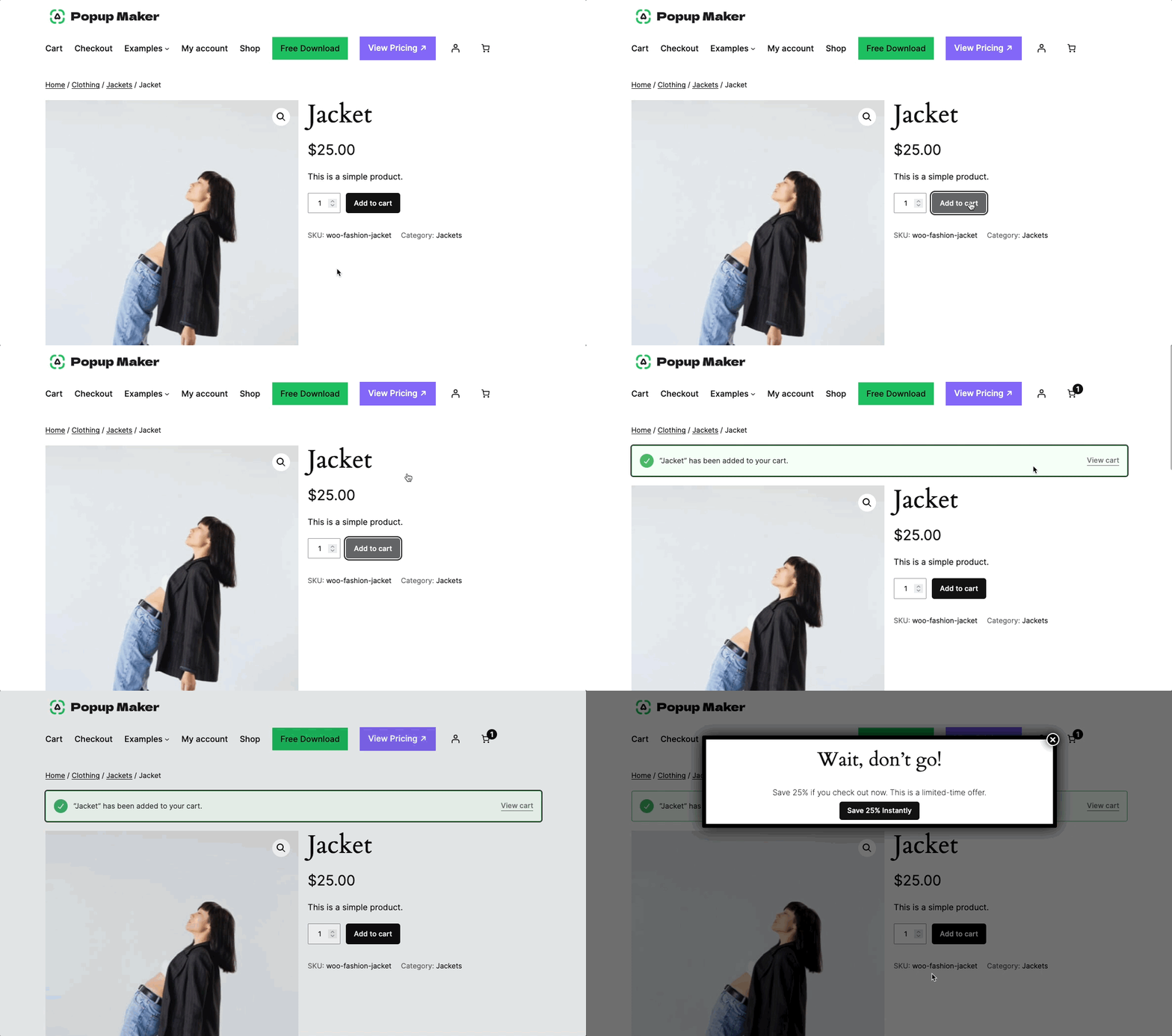
We based the example popup below on the Cart Abandonment popup from our Pro+ Ecommerce Popups demo site.
Want to try it out first? Or even better. You can actually build the example popup as you go through this tutorial.
Before you start
Software
This is an updated guide for Popup Maker Pro+ (1.1.0) Ecommerce Popups.
Optional setups
There are 2 optional setups if you want a more complete cart abandonment demo. Each of those setups has a dedicated how-to guide to help you get started.
- Create a WooCommerce coupon code.
- Create a Popup Maker CTA.
Now, let’s dive into the main idea—displaying a popup to people who are leaving your site with products still in their cart!
Create the cart abandonment popup
Note: The two main pieces that set this popup apart from “normal” popups are its exit intent trigger and WooCommerce cart targeting rule.
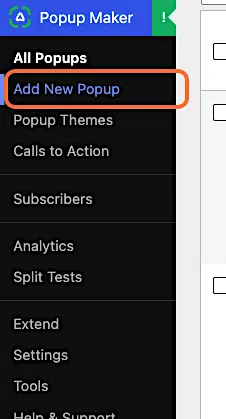
Step 1. Click Add New Popup
Step 2. Create your popup’s content
Enter a popup name, e.g., “Woo Cart Abandonment Popup”, then add the main content.
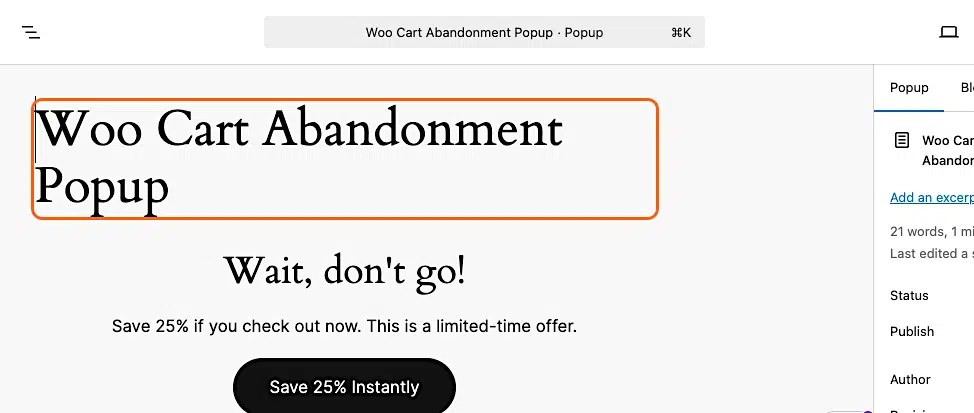
Next-level option: In the example above, we used a Popup Maker CTA. That CTA redirects customers to the WooCommerce checkout page and automatically applies the coupon we created earlier.
It’s time to set up an Exit Intent trigger.
Step 3. Click Triggers
Under Popup Settings, below the popup editor, click the Triggers tab.
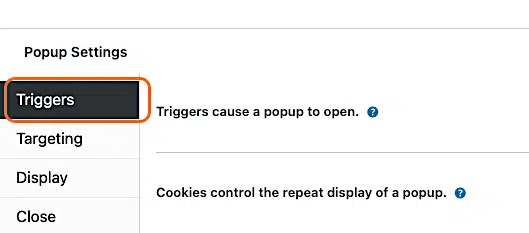
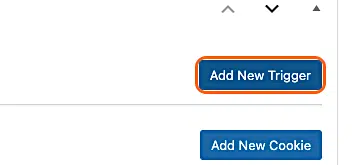
Step 4. Click Add New Trigger
Step 5. Select Exit Intent
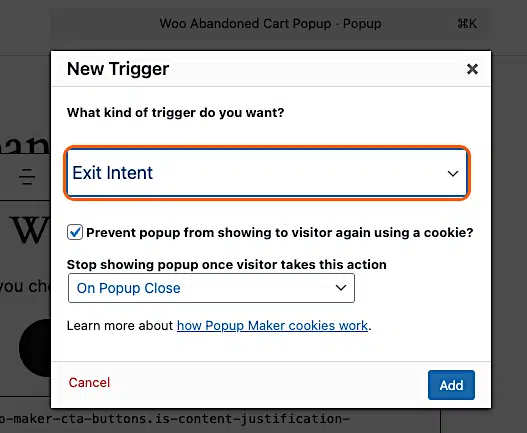
Step 6. Select On Popup Open
You want to make sure your customer sees the popup only once. The cookie stops showing the popup to that customer again for 1 month (default cookie duration).
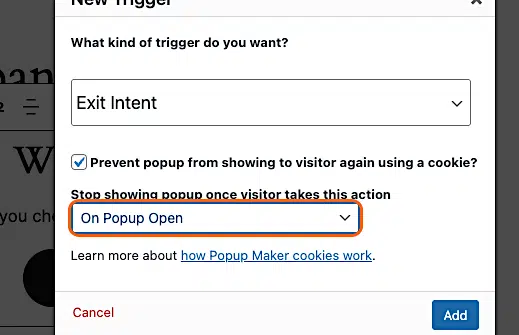
Step 7. Click Add
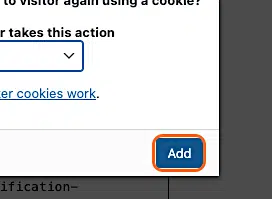
Step 8. Click Add
Keep the default Exit Intent Settings checked. Click Add to save the trigger and its cookie.
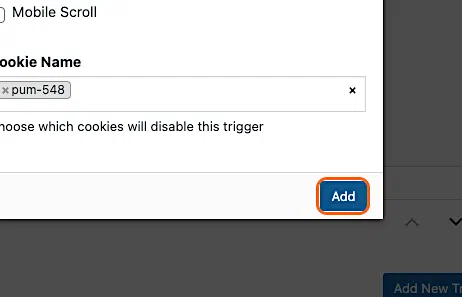
Almost there. Onward to Targeting conditions!
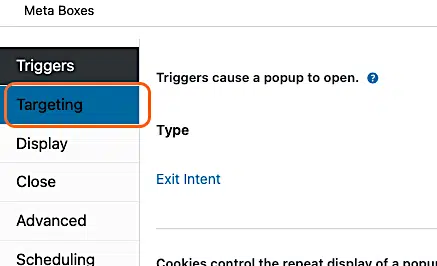
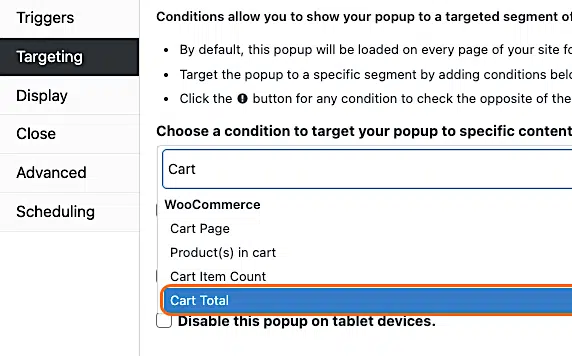
Step 9. Click Targeting
Step 10. Select Cart Total
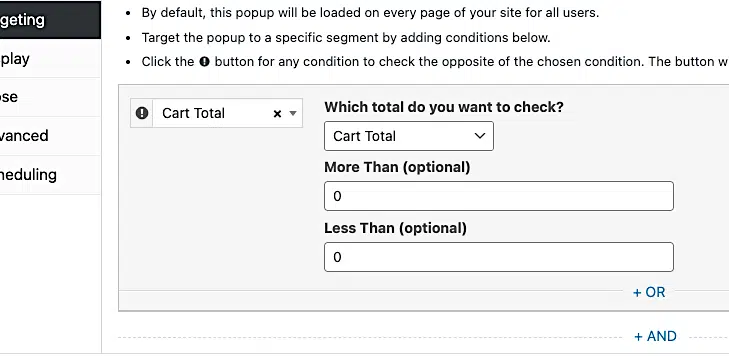
Step 11. Keep the Cart Total default settings
Your Cart Total settings should look like this.
Last step!
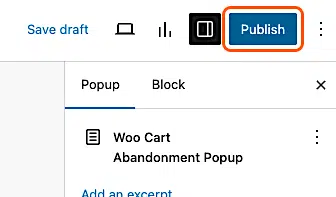
Step 12. Click Publish
You did it 🎉
Test Run
Test steps
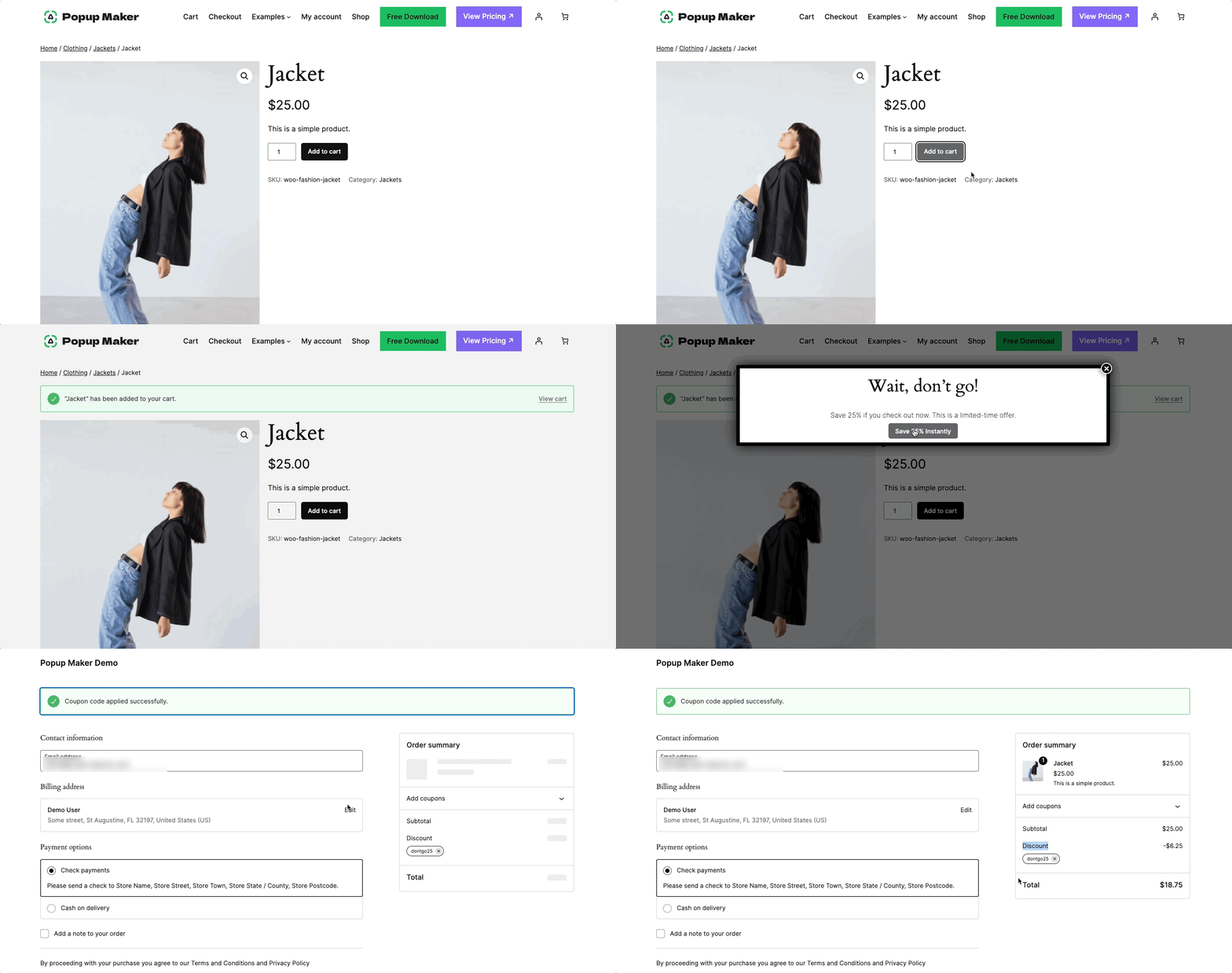
You should now see the popup when you do the following:
- Go to a product page from your shop page.
- Add the product to your cart.
- Move your cursor out of the browser window.
- Confirm that your popup appears.
- If you added the Popup Maker CTA button and WooCommerce coupon code, click Save 25% Instantly.
- Confirm that your coupon code was applied to your order.
- If you need to retest, use the Popup Maker admin tools or browser dev tools to delete the popup cookie first.
Demo of the result
Here’s a short demo clip of what you should see.
Extra Credit
The popup you just created fires from any page on your site — not just the cart or checkout. As long as a visitor has products in their cart and tries to leave, the exit intent popup can reach them.
That “safety net” is intentional. According to Uptain’s 2025 cart abandonment report, most purchases are abandoned when a tab or browser goes inactive, not when someone closes the window or clicks back. That’s a sign customers are distracted or comparing options across multiple tabs—and it can happen from anywhere on your site, not just the checkout page.
Targeting every page gives you the most opportunities to recover those sales.
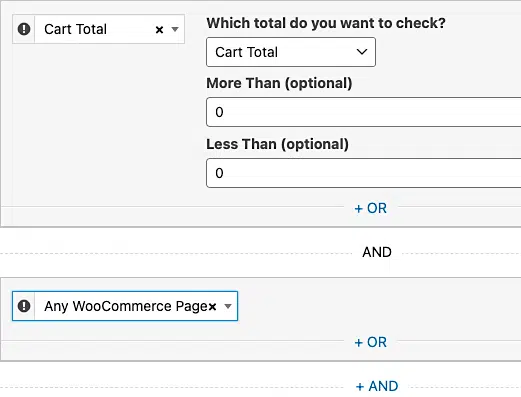
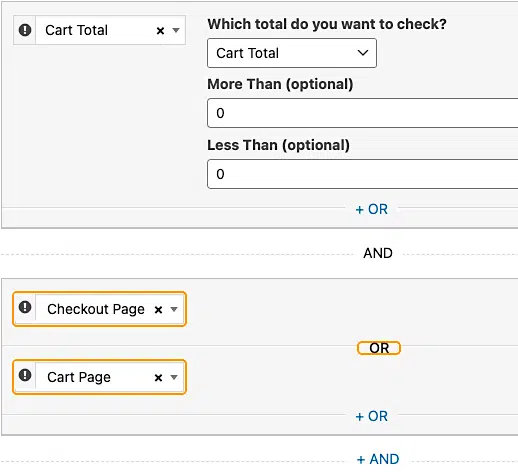
However, if you want to narrow that down, you can add a second targeting rule to limit the popup to specific pages. Here are two examples:
Option 1: Narrow the targeting to only WooCommerce pages
- Go to your popup’s Targeting settings.
- Click + AND.
- Select Any WooCommerce Page.
- Save your changes.
Option 2: Narrow the targeting to only the Checkout OR Cart pages
- Go to your popup’s Targeting settings.
- Click + AND.
- Select Checkout Page.
- Click + OR
- Select Cart Page.
- Save your changes.
Chat with Claude
Need a hand? You can chat with Claude about this guide. We already set up the instructions for you. Just click and go.
✨Ask Claude about this topic.