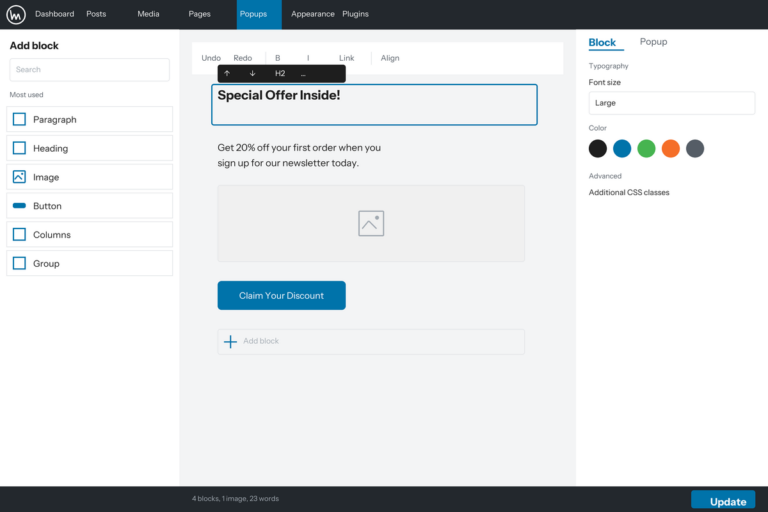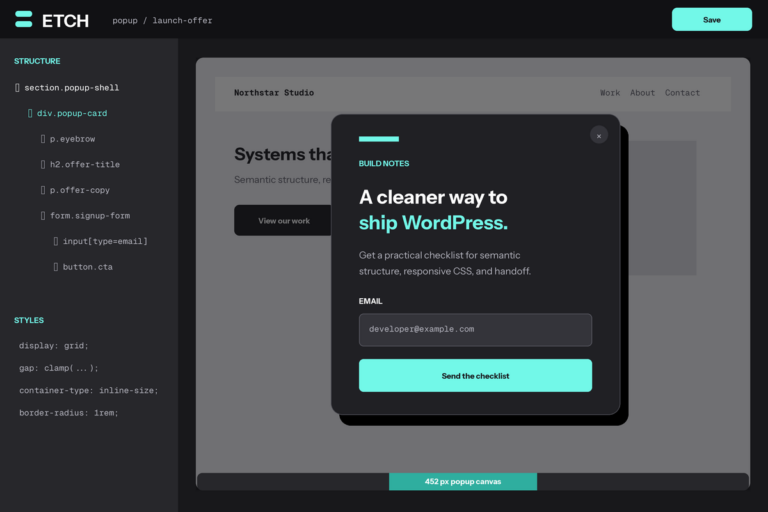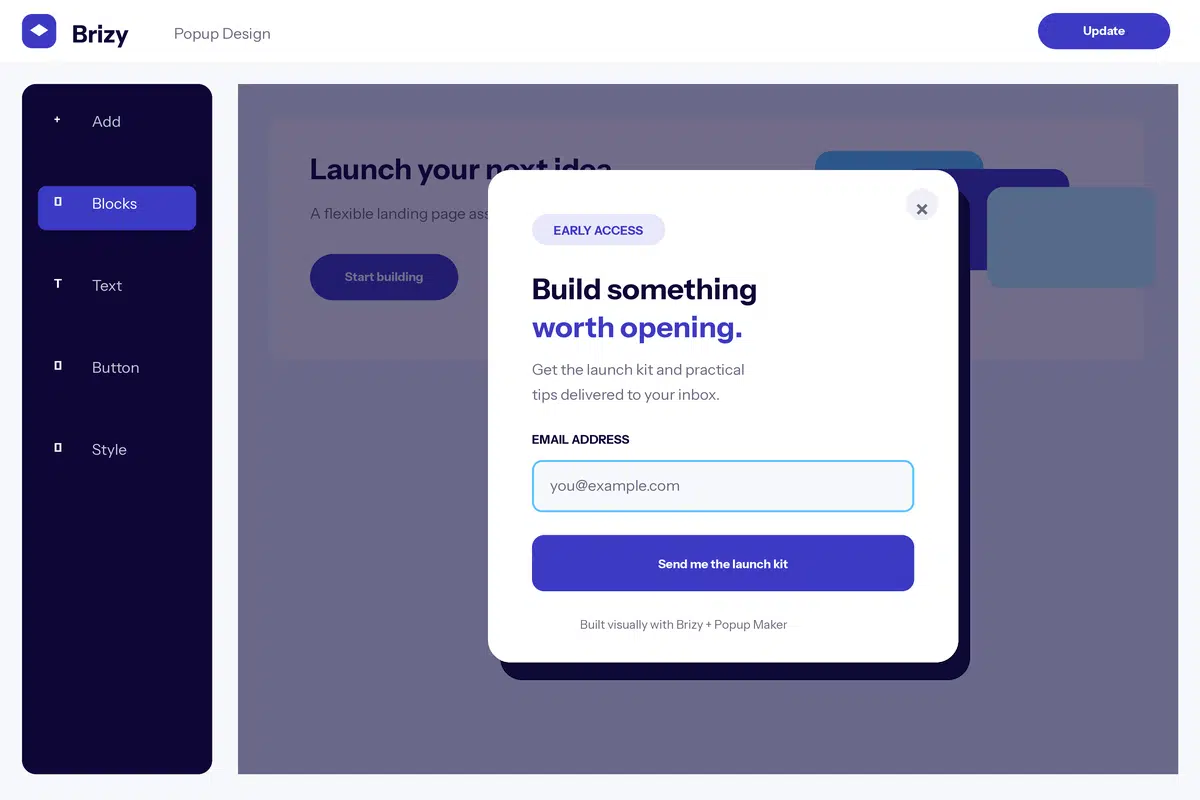
A Brizy popup keeps the visual builder workflow familiar while Popup Maker handles campaign delivery. Build the inner layout with Brizy blocks and elements, then configure the popup frame, trigger, audience, and repeat behavior in Popup Maker.
In this tutorial, you’ll create the Brizy popup, design its content, configure the campaign, and test the complete visitor experience. You can start with Popup Maker’s free plugin.
What You’ll Need
- A WordPress site where you can install and configure plugins
- Popup Maker installed and activated
- Brizy installed, active, and available to your WordPress role
- A clear goal, such as collecting a lead, promoting an offer, or announcing an update
Decide Which Tool Controls What
Brizy owns the content and responsive styling inside the campaign. Popup Maker owns the overlay, container, close button, size, position, triggers, targeting conditions, cookies, and available analytics. Avoid configuring two popup systems for the same campaign.
Review the Brizy popup integration details if you want a concise compatibility overview before starting.
Step 1: Create and Save the Popup
In the WordPress dashboard, go to Popup Maker → Create Popup. Enter a descriptive internal name that explains the campaign, such as “Homepage newsletter offer.” Select Save Draft before opening the builder so it can open this popup.
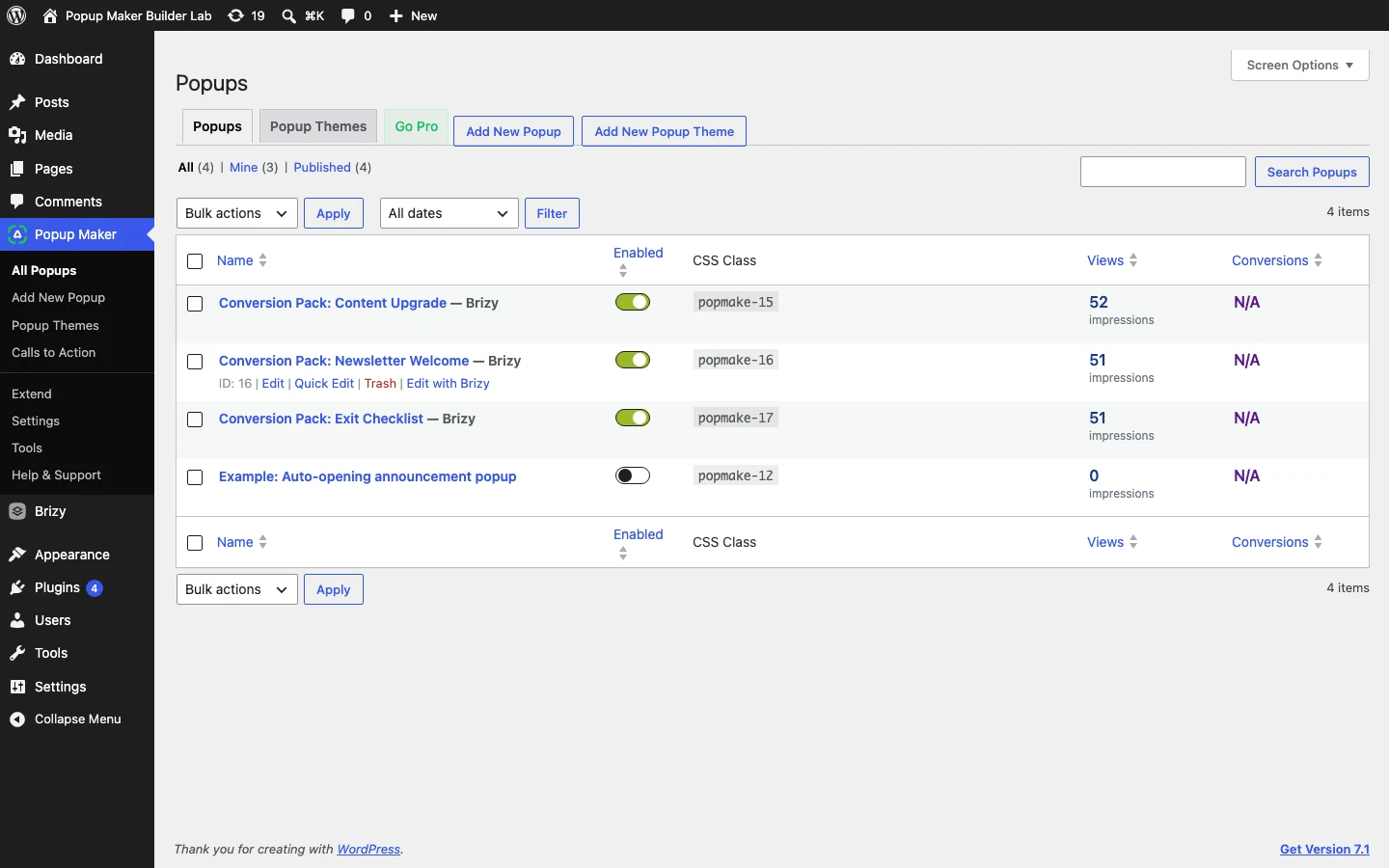
Leave the campaign unpublished while you build. A saved draft gives you room to finish the layout, presentation, trigger, targeting, and cookie settings before visitors can encounter it.
Step 2: Open the Popup in Brizy
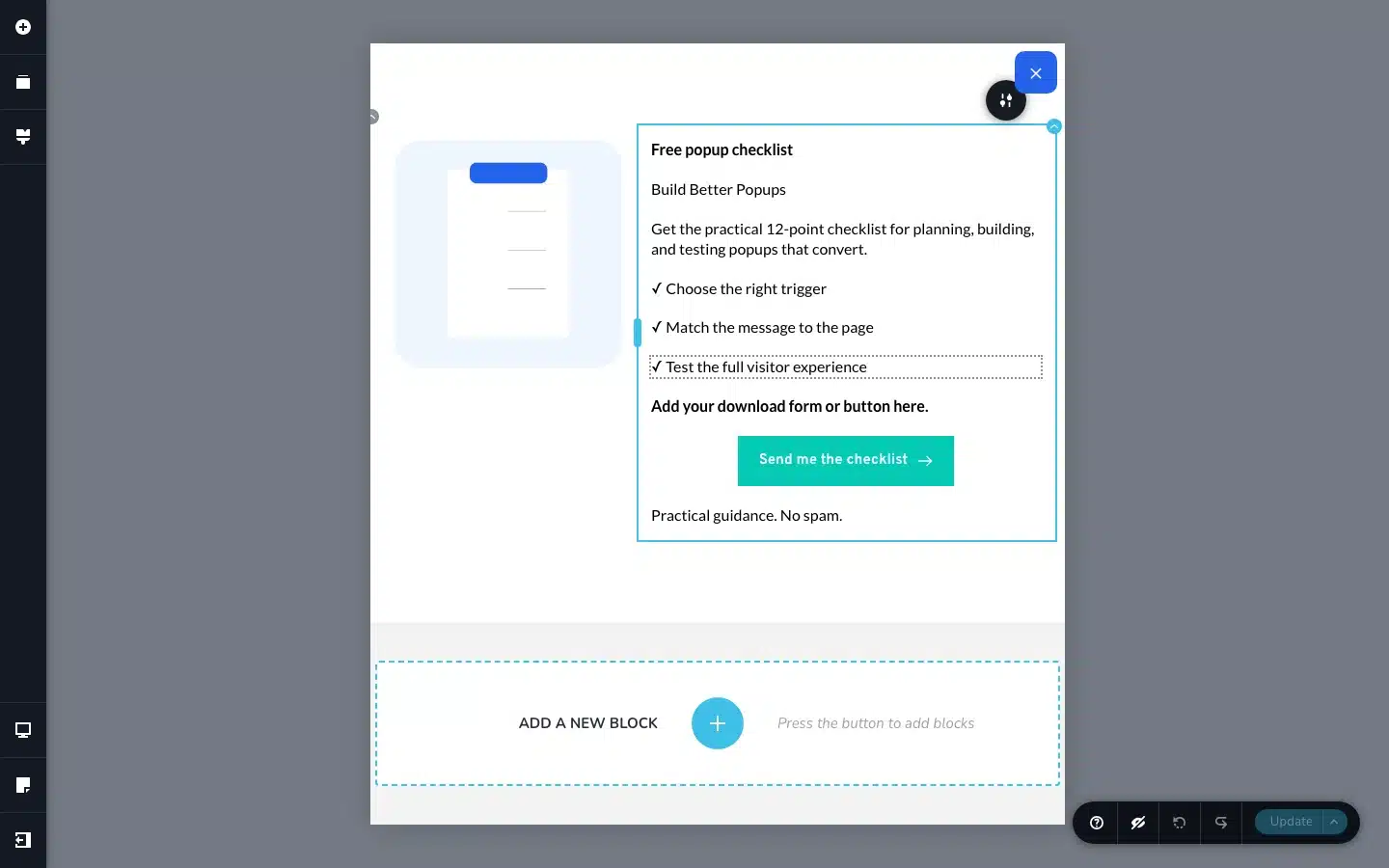
Open the popup you saved in Step 1 and choose Edit with Brizy. The editor opens the popup content directly, so you do not need a separate Brizy page or a copied embed code.
Step 3: Build the Brizy Popup Content
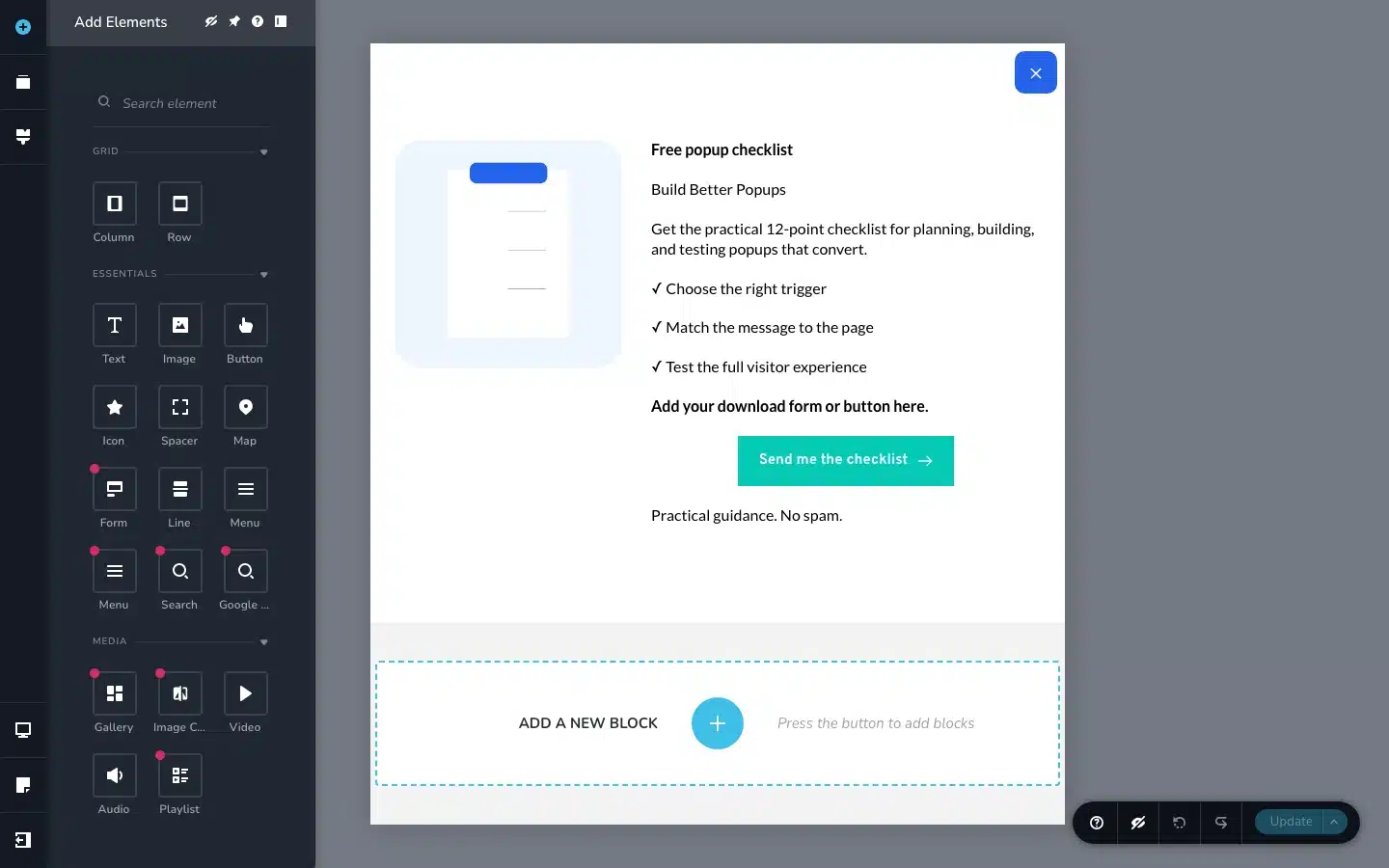
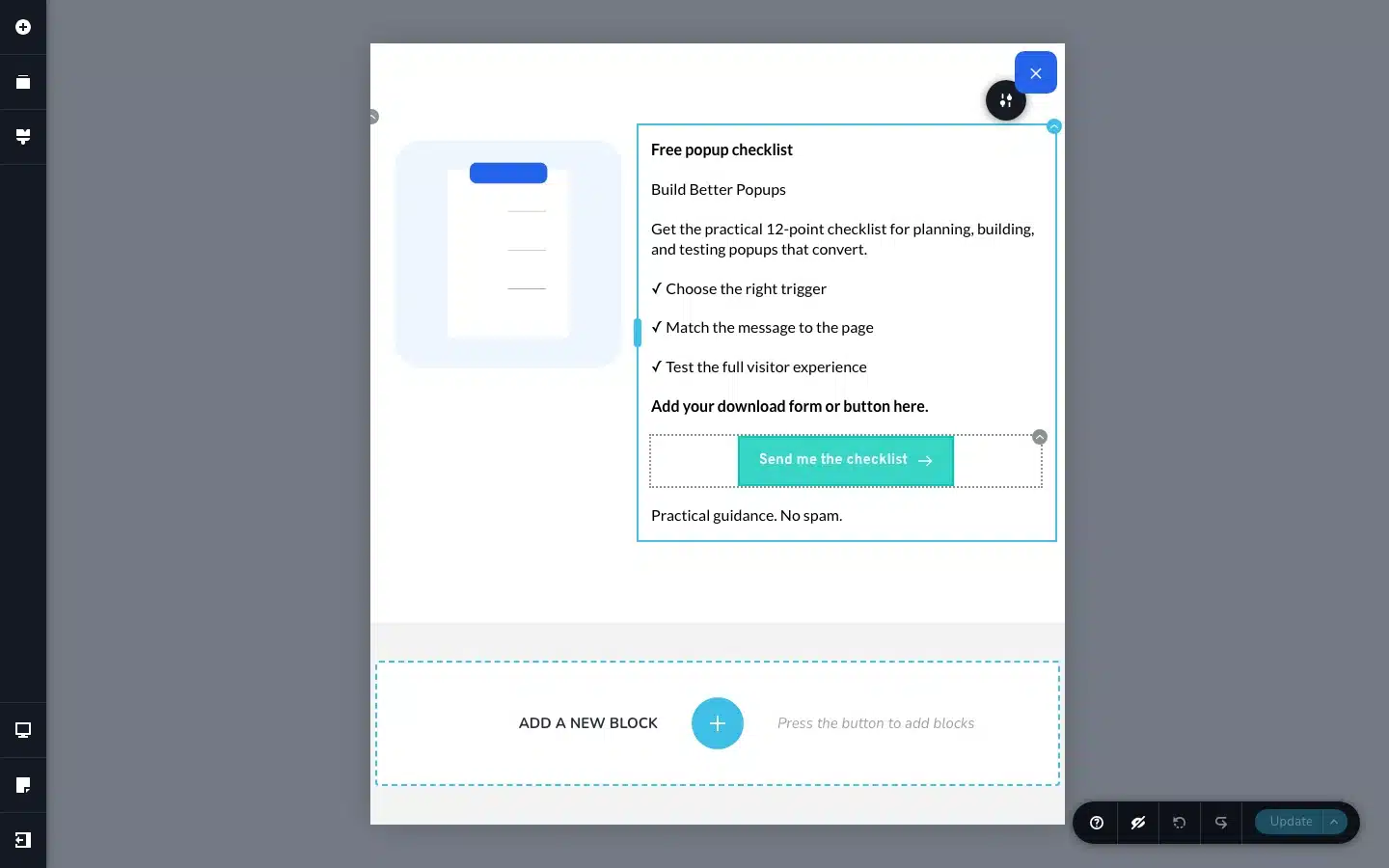
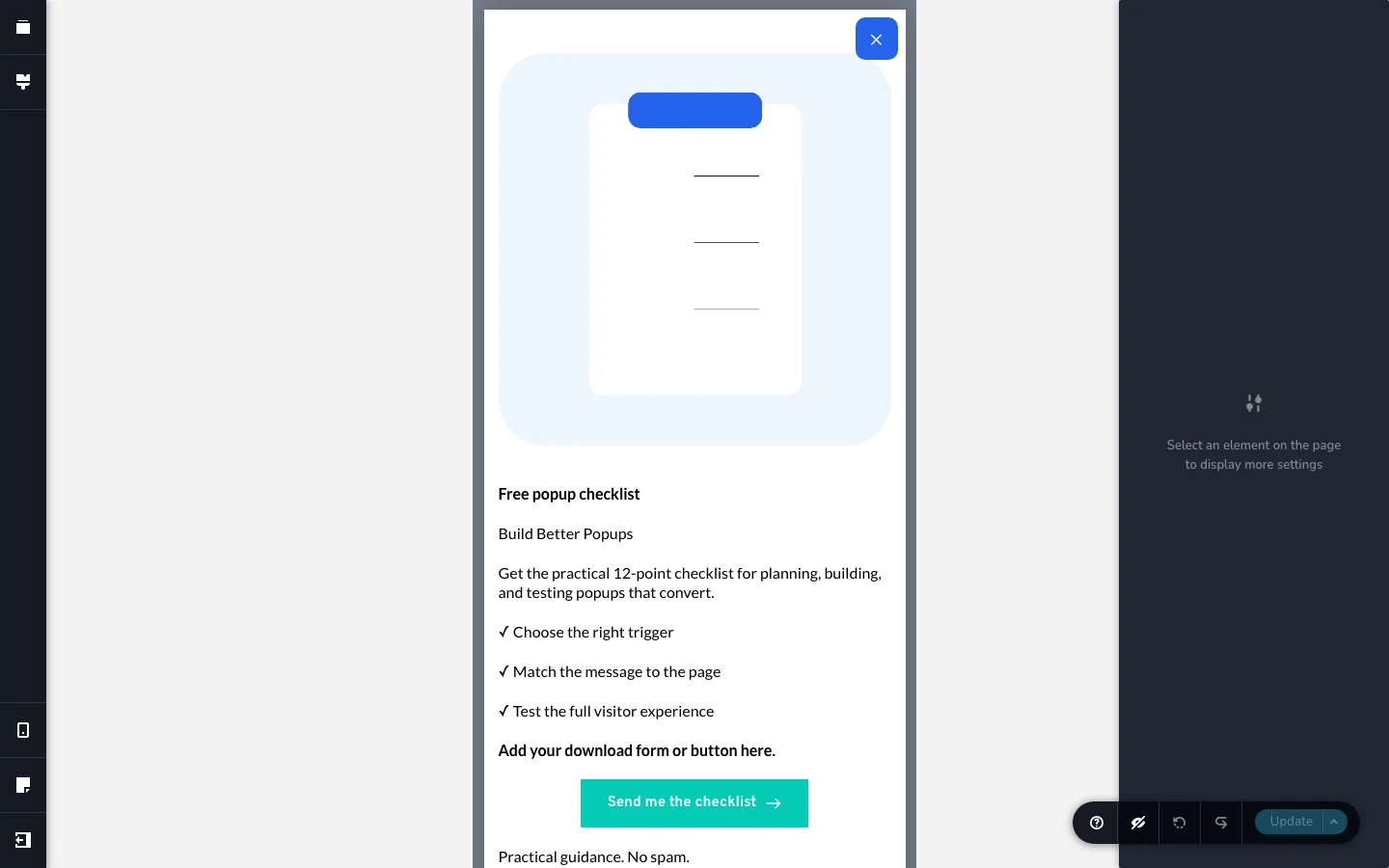
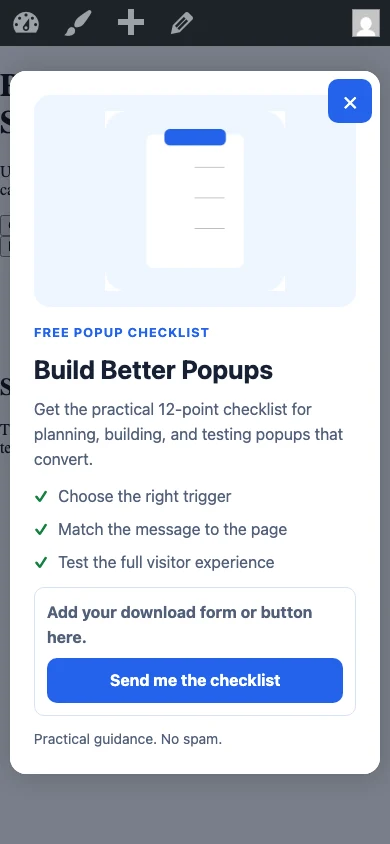
Add a Brizy block, then place the text, image, button, form, or other elements needed for one clear action. Popup previews use the content height instead of forcing the first block to fill the screen, so avoid adding full-screen spacing unless the campaign actually needs it. Check Desktop, Tablet, and Mobile views and adjust spacing and text for each.
A Simple Popup Content Formula
- Headline: state the offer or outcome in one clear sentence.
- Supporting copy: explain the value or next step without turning the popup into a full page.
- Primary action: use one obvious button or form submission.
- Trust detail: add only the reassurance needed to complete the action.
Responsive Design Tips
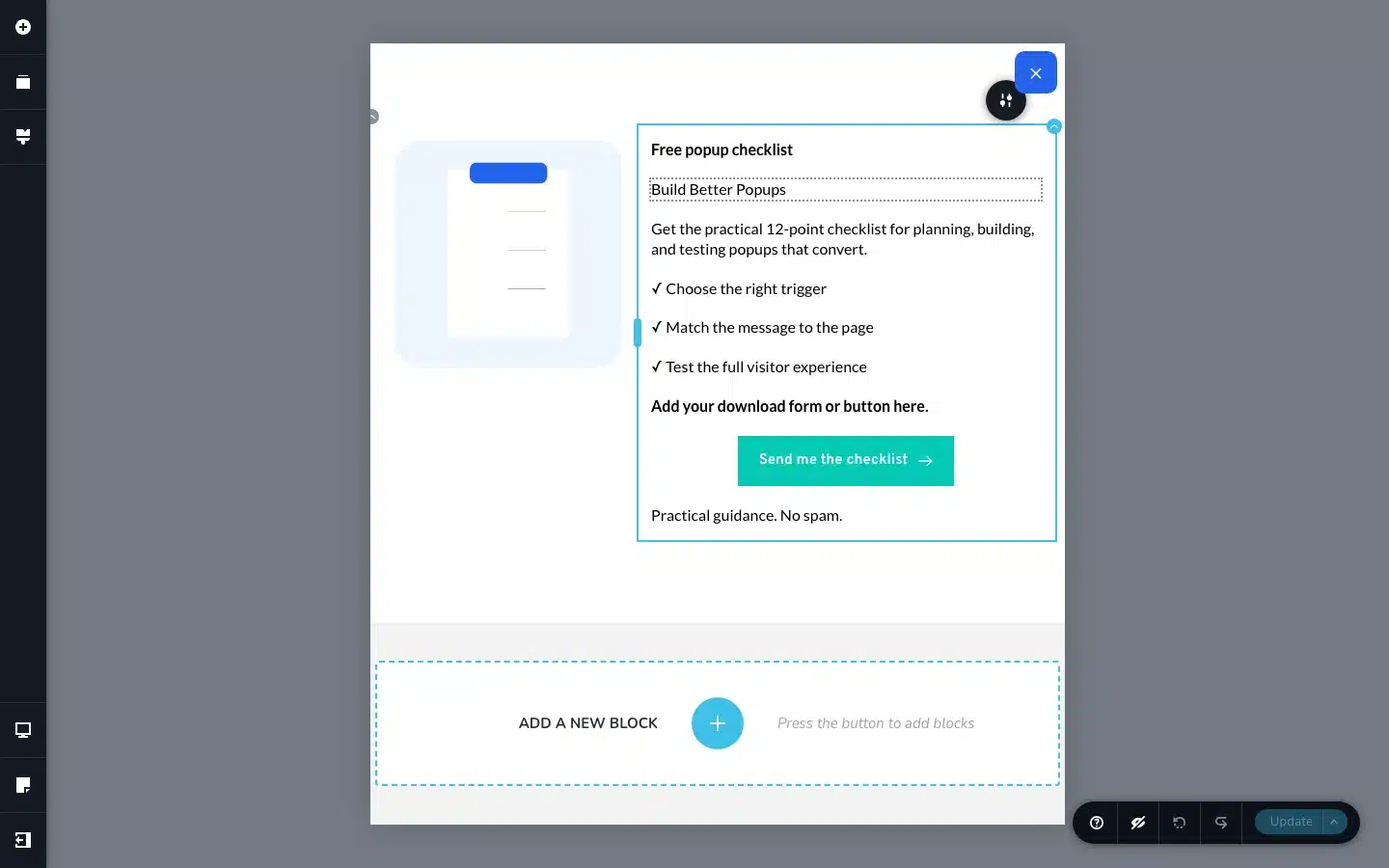
- Start with a compact block instead of adapting a full landing-page layout.
- Check Brizy’s three responsive views and pay special attention to fixed heights and large padding.
- Use one primary action and make it obvious at the first visible popup state.
- Test forms, animations, and third-party elements after the popup opens on a public page.
Step 4: Configure the Popup Maker Frame
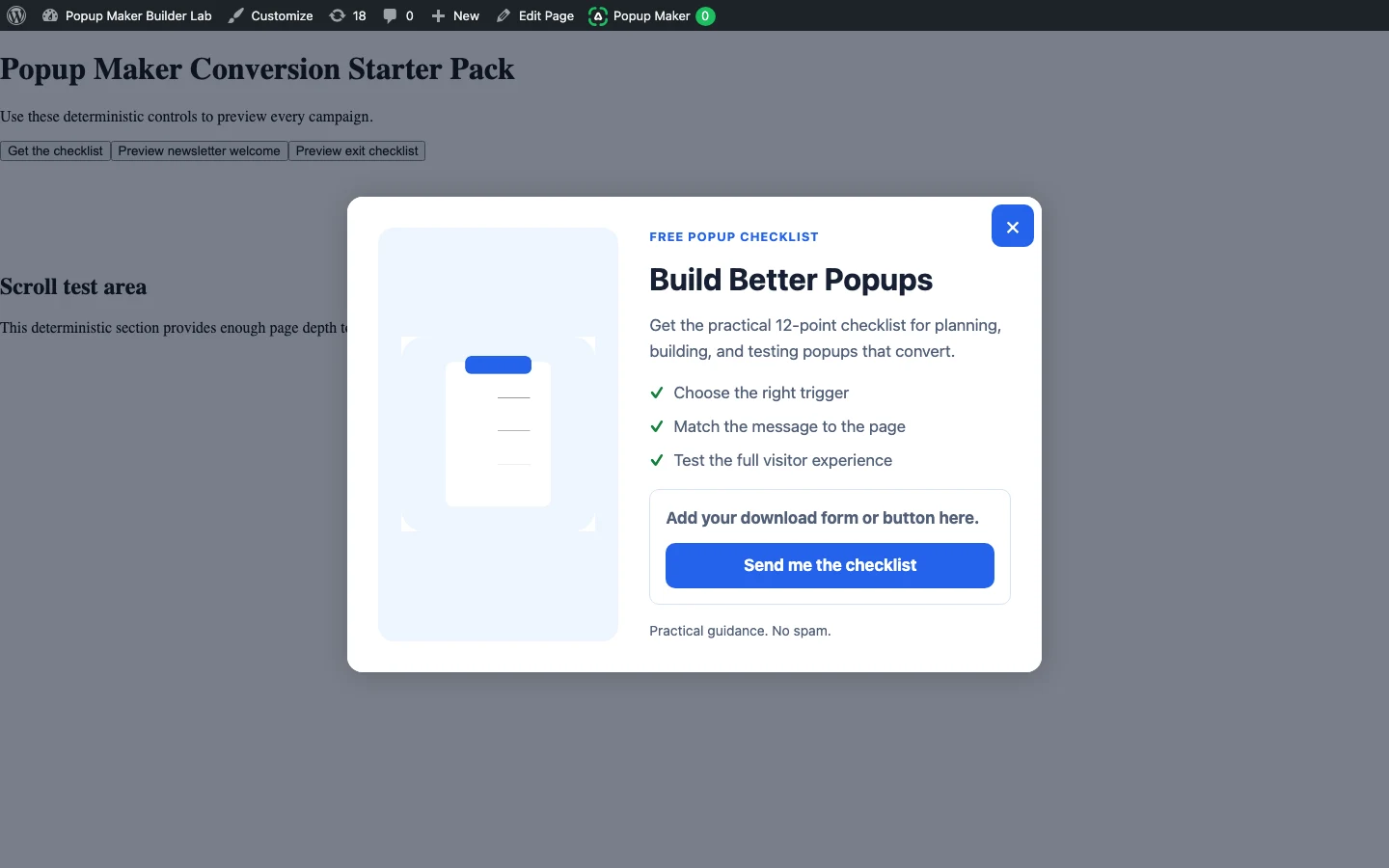
Save the builder design and return to the Popup Maker editor. Choose a popup theme, then set the container size and position around the content you built. The theme controls the overlay, frame, close button, and default spacing; the builder controls the content inside that frame.
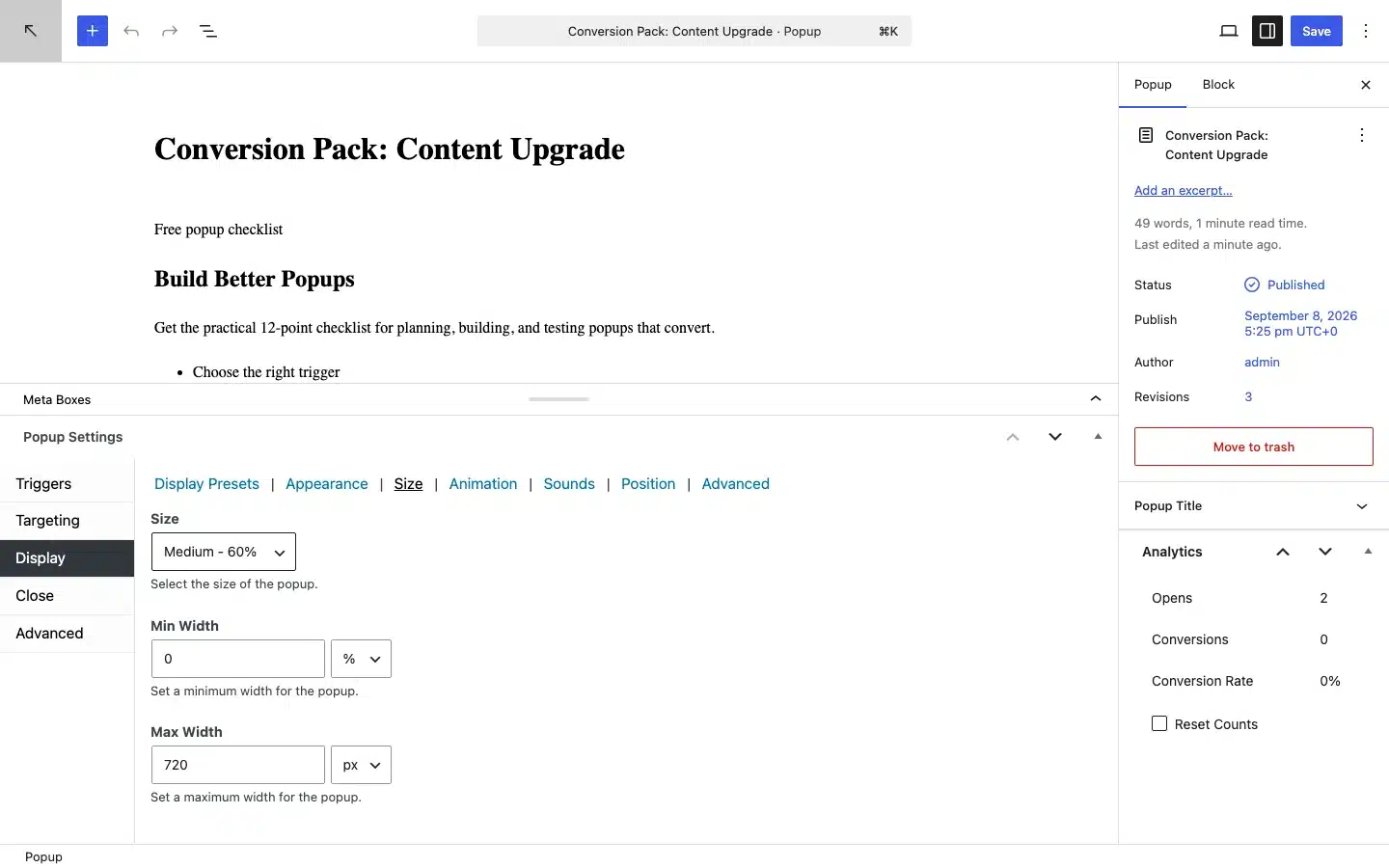
Preview the combination before adding custom styling. If the design feels crowded, simplify the content or increase the Popup Maker width. If it feels disconnected from the site, align the popup theme with the builder typography, colors, rounded corners, and spacing.
Step 5: Add a Trigger, Targeting, and Cookies
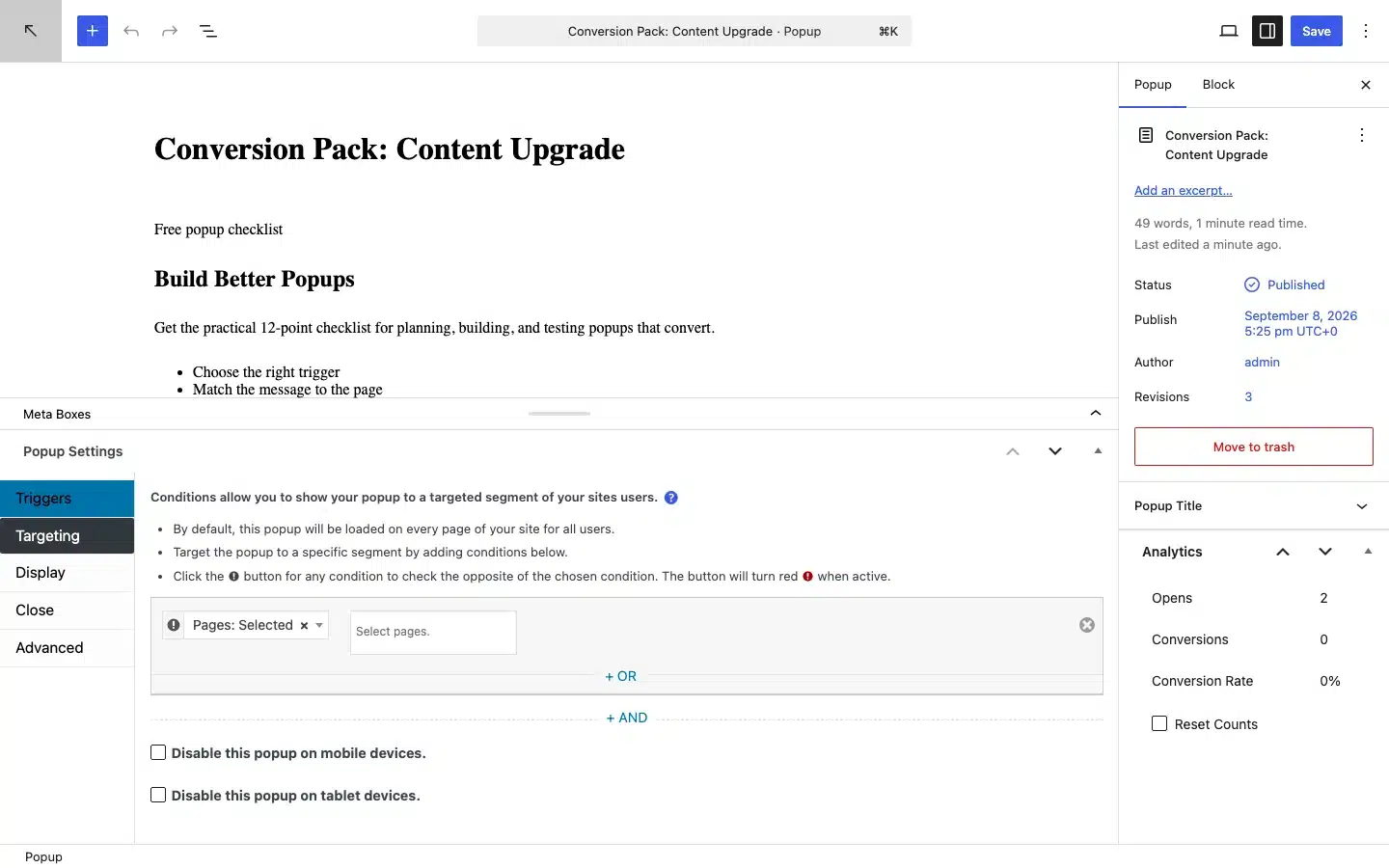
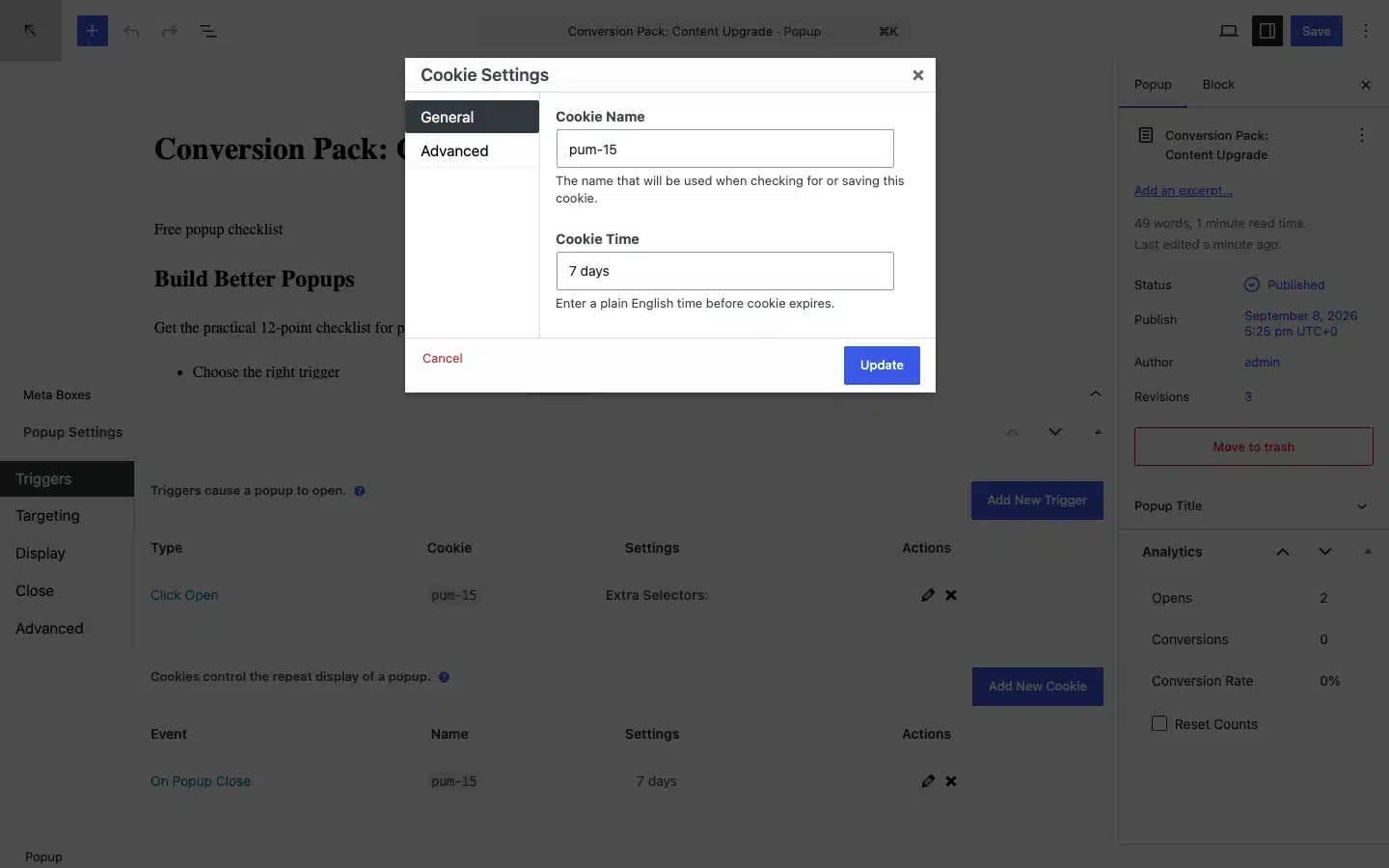
Save the Brizy design and return to Popup Maker. Add a Click Open or Auto Open trigger, then apply targeting conditions for the pages or visitors that should qualify. Add a cookie when a conversion, close, or view should prevent the campaign from appearing too frequently.
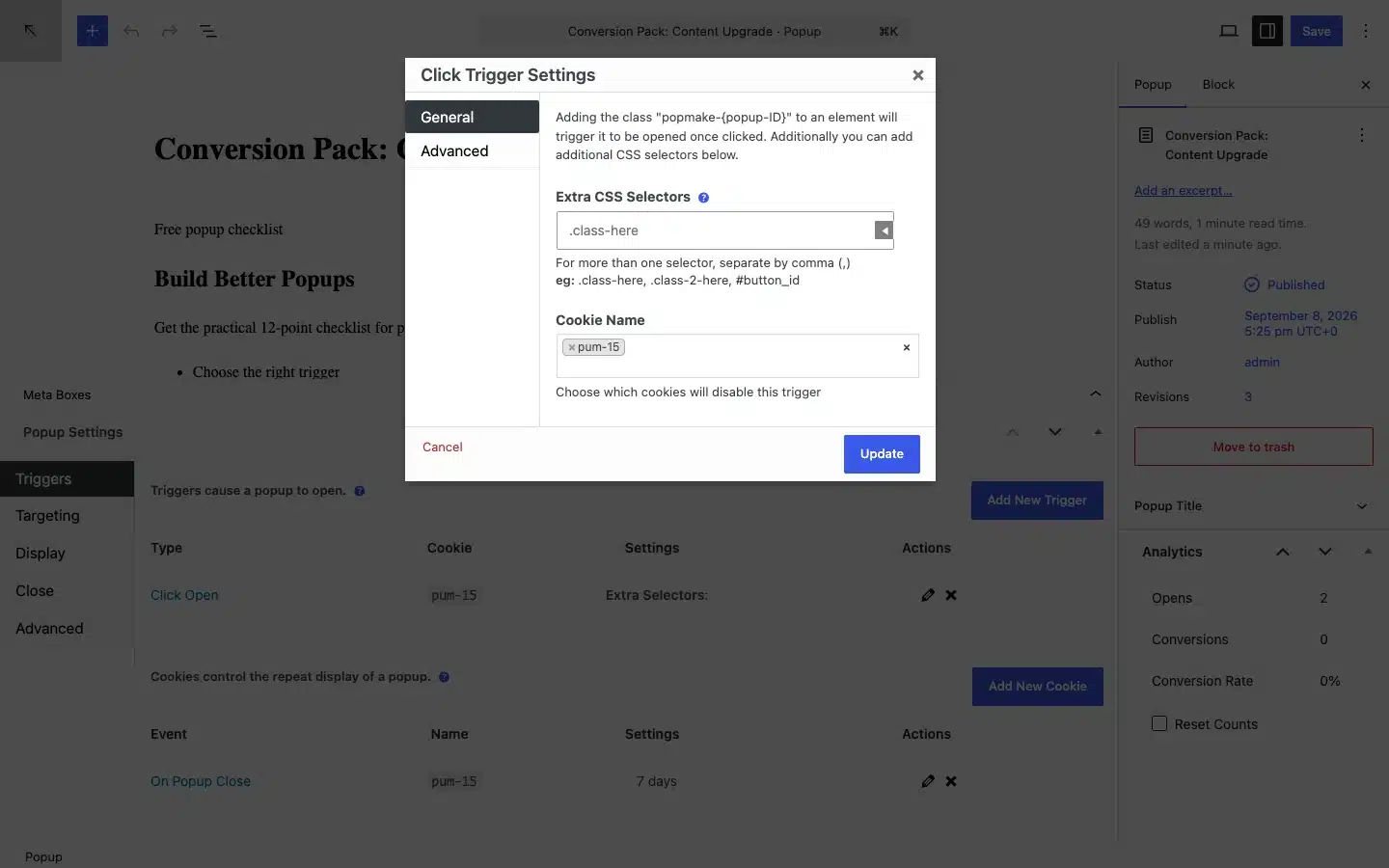
- Popup triggers decide what opens the popup.
- Popup targeting decides which pages or visitors are eligible.
- Popup cookies decide when an eligible visitor should stop seeing it.
Treat those as separate decisions. A trigger does not replace targeting, and a targeting rule does not open the popup by itself. Add only the cookie behavior that matches the campaign goal; otherwise you can accidentally suppress a campaign before a visitor completes the intended action.
Step 6: Test the Complete Campaign
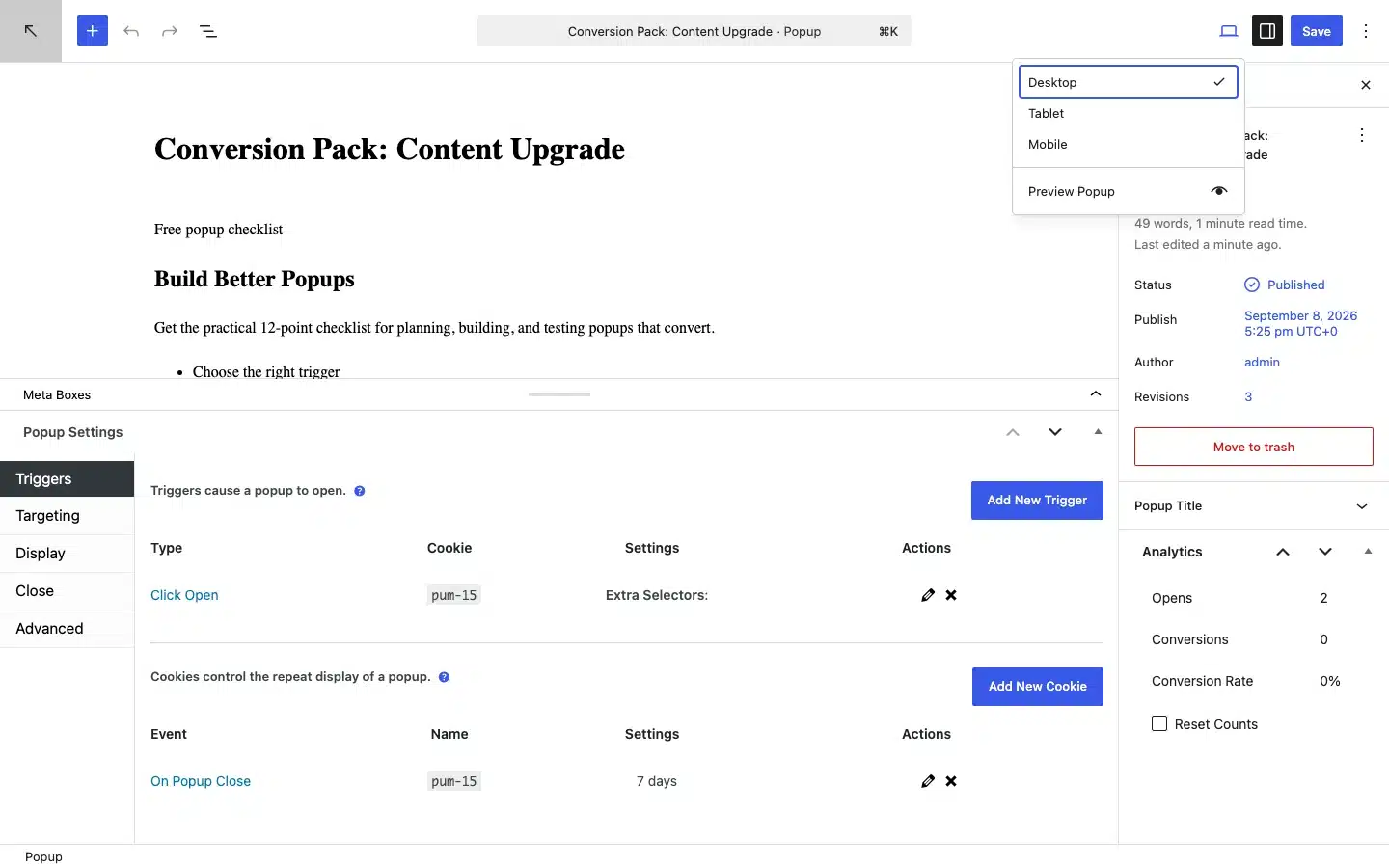
Preview the popup from a normal site page, then test again in a private browsing window. This shows what a logged-out visitor sees and can reveal targeting or cookie settings hidden by an administrator session.
- Open the popup with every configured trigger.
- Confirm the overlay and close controls work with mouse, touch, and keyboard.
- Submit the form or follow the primary button and verify the intended result.
- Check desktop and narrow mobile widths without horizontal scrolling.
- Confirm excluded pages and visitors do not receive the campaign.
- Repeat the test after the configured cookie is created.
Troubleshooting
- Edit with Brizy is missing: confirm Brizy is active, save the popup draft, and verify your role has builder access.
- The first block fills the screen: remove or reduce its full-height setting and preview again inside the popup frame.
- The mobile design overflows: adjust width, padding, and text size in Brizy’s Mobile view and retest the actual Popup Maker width.
To find the cause of a problem, save both editors and test while logged out. Temporarily simplify the popup to one text element and one button, then add other elements back one at a time.
Create Your First Brizy Popup
Start with one focused campaign, build the content in your preferred editor, and let Popup Maker handle its delivery. Get Popup Maker free or review the official builder documentation for deeper help with the editor itself.
Frequently Asked Questions
Can I edit a Popup Maker popup directly in Brizy?
Yes. Save the popup and choose Edit with Brizy to build its content directly with Brizy blocks and elements.
Does the Brizy integration require Popup Maker Pro?
No. Direct builder editing and standard Popup Maker triggers are available in the free plugin. Paid extensions add optional campaign features.
Why does my Brizy block look too tall in the popup?
Check whether the block has a full-height or large minimum-height setting. Popups usually work better with content-driven height and compact responsive spacing.
Can I use a Brizy form in a popup?
You can place Brizy elements in the content, but test the submitted form on the frontend. Form services and third-party scripts can have separate configuration requirements.
What does Popup Maker control?
Popup Maker controls the surrounding theme, overlay, close button, size, position, triggers, targeting, cookies, and available analytics while Brizy controls the inner layout.