

Frequently Asked Questions
Does Popup Maker work with SiteOrigin Page Builder?
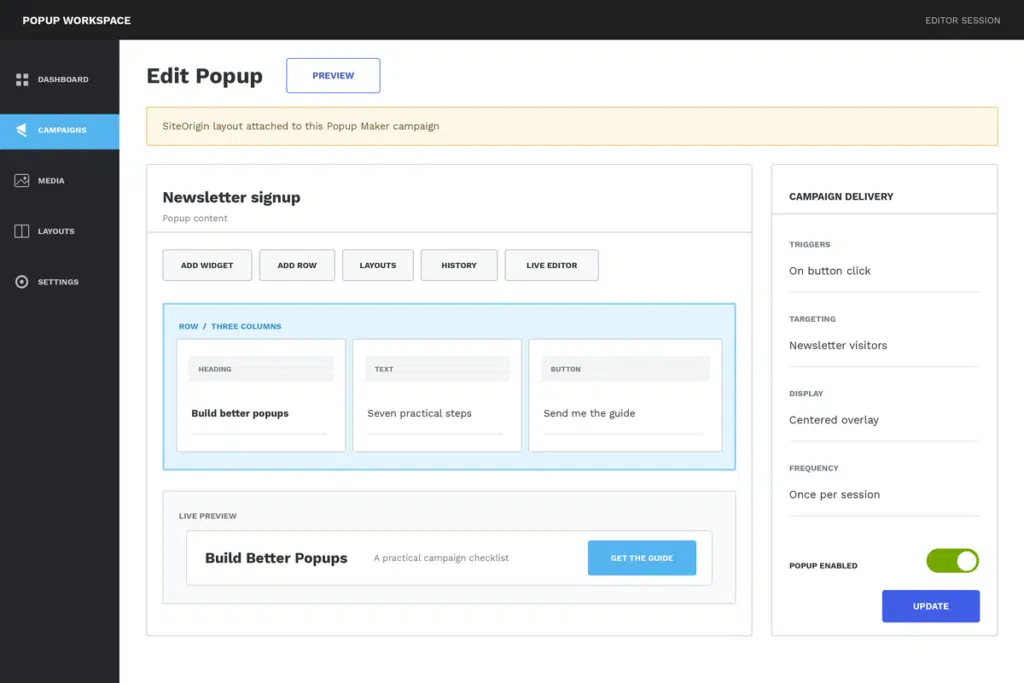
Yes. Save a Popup Maker popup, open its Page Builder interface, and arrange the inner content with SiteOrigin rows, columns, and widgets.
Does the SiteOrigin integration require Popup Maker Pro?
No. Direct SiteOrigin editing is included in Popup Maker’s free core. SiteOrigin Premium, Popup Maker extensions, and third-party widgets keep their own feature and license requirements.
Can I use my existing WordPress widgets in a SiteOrigin popup?
You can use standard WordPress widgets and the SiteOrigin widgets enabled on your site. Test interactive and third-party widgets in the finished popup because their scripts, services, and setup requirements vary.
Does SiteOrigin Live Editor show the complete popup campaign?
Live Editor helps you review the SiteOrigin content inside the Popup Maker frame. Test the finished popup on a normal page to confirm its overlay, close button, size, trigger, targeting, and repeat behavior together.
How do I keep a SiteOrigin popup readable on mobile?
Use SiteOrigin’s responsive layout and collapse settings to stack columns when the popup narrows, reduce mobile spacing where needed, and test the actual Popup Maker width on a phone-sized screen.
Will SiteOrigin take over every popup editor on my site?
No. Existing SiteOrigin popup documents keep their Page Builder workflow, while block-based popups can remain in the WordPress block editor. Choose SiteOrigin only for the campaigns you want to build there.
Will a SiteOrigin contact form automatically count as a Popup Maker conversion?
No. Page-builder compatibility does not prove form-specific close-on-success, follow-up triggers, cookies, or conversion tracking. Configure and test the exact form integration and campaign action you need.