Remote Content AJAX functionality lets you create dynamic popups that load content programmatically using custom JavaScript and PHP code. Instead of adding static content to your popup editor, you can generate personalized content based on visitor interactions, logged-in user data, or any parameters you define.
In this guide, you’ll learn how to:
- Set up a Click Open trigger for your Remote Content popup
- Write custom JavaScript to pass data to your popup
- Create a PHP function that generates dynamic content
- Connect everything together for a working example
We’ll also explore advanced use cases like displaying personalized welcome messages and showing WooCommerce products dynamically.
Let’s dive right in with an example.
Remote Content AJAX Functionality Example
Set Up the Popup Trigger on the Front End
With Remote Content popups, you need to create a front-end element that visitors can click to launch your popup. This involves two main steps: creating the clickable element and connecting it to your popup using a Click Open trigger.
Step 1. Create Your Front-End Element
First, create the element that visitors will click to launch your Remote Content popup. This could be:
- A button
- A text link
- An image
- Any other clickable element on your post or page
Add this element to your post or page using your preferred method (WordPress block editor, page builder, etc.). Make note of where you placed it, as you’ll need to target it in the next step.
Step 2. Add a Click Open Trigger to Your Remote Content Popup
Now you need to connect your front-end element to your Remote Content popup using a Click Open trigger.
- Go to Popup Maker > All Popups and click Edit under your Remote Content popup.
- In the Popup Settings section under the popup editor, click the Triggers tab.
- Click Add New Trigger.
- Select Click Open from the dropdown and click Add.
Step 3. Target Your Front-End Element Using Extra CSS Selectors
For Remote Content popups, you’ll typically use the Extra CSS Selectors method to target your front-end element. This method allows you to target existing elements on your site without adding CSS classes to them.
- Click the pencil icon next to your new Click Open trigger to edit it.
- In the Click Trigger Settings, locate the Extra CSS Selectors field.
- Enter the CSS selector that targets your front-end element. For example:
- For an element with ID “my-button”:
#my-button - For an element with class “popup-trigger”:
.popup-trigger - For all images on your page:
img
- For an element with ID “my-button”:
- Click Update to save your trigger settings.
- Click Update or Publish to save your popup.
Need help finding the right CSS selector for your element? Check out our guide on finding CSS selectors.
Write the Custom JavaScript to Programmatically Create Popup Content
Now that you’re set up on the front end, you need to add extra data to the request that your AJAX response function will use. You’ll do this with JavaScript by using the jQuery.fn.popmake.rc_user_args array variable. This array stores a set of values for each popup using the popup ID as the key.
The following JavaScript shows how to add parameters just before the AJAX request for popup 123. You’ll need to change the example 123 ID number to your Remote Content popup ID. Read our Find the Popup ID guide to learn how to find your popup’s ID number.
We recommend using a plugin like Simple Custom CSS/JS to install the code into the footer area of your WordPress site.
/*
Replace all references to the Popup Maker ID number used below with the ID number
for your popup. From the WP Admin, go to Popup Maker > All Popups > CSS Classes
to find the ID number the plugin assigned to your popup.
 */
(function ($) {
    $(document)
        .ready(function () {

            $('#popmake-123').on('popmakeRcBeforeAjax', function () {
                $.fn.popmake.rc_user_args[123] = {
                    custom: 123,
                    name: 'Daniel'
                };
            });

        });
}(jQuery));
View the source on GitHub.
Write the PHP Function that Adds the Content to Your Popup
You can then pass the custom and name parameters in the AJAX function shown below to customize the content.
Copy, paste, and edit the following code in your child theme’s functions.php file, or use the My Custom Functions plugin to install the code.
<?php
/**
 *  Customize content via the Popup Maker custom AJAX function.
 *
 * @since 1.0.0
 *
 * @return void
 */
function popmake_remote_content_ajax() {
	echo 'Hello ' . $_REQUEST['name'] . ', you chose option ' . $_REQUEST['custom'];
}
View the source on GitHub.
Adding the PHP Function Name to Remote Content
Now all that’s left is to enter popmake_remote_content_ajax as the Function Name in the Remote Content Area > General settings.
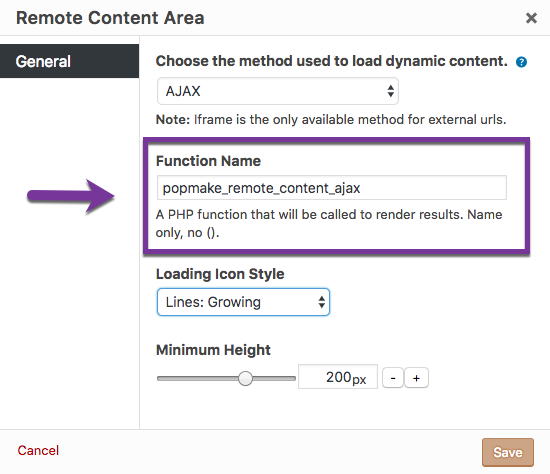
With these settings and code in place, your popup’s content will be:
Hello Daniel, you chose option 123
Dynamically Generate Popup Content
As you can see, this functionality gives you ultimate flexibility because you don’t actually input content into the WYSIWIG Popup Content Editor, but dynamically generate content using code. You can pass parameters based on the button/link they clicked, user details, or any other possibilities you can come up with.
Next Level Use Cases
Dynamically Display the First Name of Who’s Logged in
A next-level idea you can try is to dynamically grab the first name of whoever’s logged in instead of displaying a hardcoded first name.
Here’s a sneak peek.

If you followed the tutorial above, you’ve already done most of the work. You just need to swap out the original custom code with new snippets that dynamically figure out and display the logged-in person’s first name.
Here are the steps.
- Target your front-end element as a click trigger like we did earlier.
- Using the tutorial above, replace the custom code. You can use this example on GitHub where we create a custom shortcode that handles the logic for dynamically figuring out the first name. Then, our AJAX functions call the shortcode and display the content in the popup!
- Create a new Remote Content popup with a click trigger or reuse the example from above. Make sure you use the same function name (
popmake_remote_content_ajax) we did earlier for the Remote Content Area > AJAX > Function Name setting. - Save all your changes.
- Go to your front end and click the trigger you set up for your Remote Content AJAX popup.
Now that you’re all warmed up, knock it out of the park with this next use case.
Dynamically Show Any Product Using a Single Popup
Right now, if you have WooCommerce 100 products (for example) and you want to show each of them in a popup, you’d need to create 100 popups. Each of those popups would contain the WooCommerce shortcode with a hardcoded unique product ID, e.g., [product_page id="123"].
We can do better using a Remote Content popup with AJAX. Basically, we’re going to write once and run for many! And even better, we can use the same popup from the original tutorial above.
Here’s how.
- Replace the custom code from the original tutorial with this example Remote Content Ajax code on GitHub.
- Edit the new custom code to make *one* (1) tiny change. Change the popup ID number in the code to popup ID for your Remote Content AJAX popup. Save your changes.
- In a post or page, add the following trigger shortcode: [
popup_trigger id="762" classes="prod-596"]Show product 596 in a popup[/popup_trigger]. - Change 762 to the same popup ID from step 2. Change 596 to one of your WooCommerce product IDs.
- Save all your changes.
- Go to your post or page and click the trigger you created in step 3.
- As a test, add 2-3 more
popup_triggershortcodes. Keep the popup ID the same, but change the product numbers, e.g., prod-101, prod-852, prod-1173, etc.
Here’s a demo of the end result.

In the demo above, we use the same popup to individually display 3 different products.
Here’s what the shortcodes look like for that page.

🎉 Congratulations 🎉, you can now reuse 1 popup to display any WooCommerce product you have in your online store!


