Installation
After you’ve received your Popup Maker licenses and files, install them on your WordPress site.
Transfer times may vary. Please allow us up to 24 hours to transfer your licenses. Thank you for your patience!
Once we’ve delivered your new files and licenses, and you’ve successfully installed them on WordPress, read the guide below to finish your upgrade.
2-Click Migration
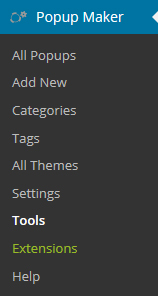
Once you’ve successfully installed Popup Maker, go to the Popup Maker Menu and select the Tools Menu.

From the Tools Menu, simply click the Import Button and you’re all done!
Deeper Compatibility
If you have used Easy Modal Short Codes or On Click extensively throughout your site, to prevent you from having to change all those eModal classes, then you can use the Easy Modal Compatibility Mode feature.
Typically, you’ll use this feature if you used many Easy Modal Short Codes or On Click Classes, and you don’t want to replace them all.
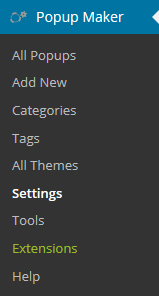
From the Popup Maker menu, select Settings.

On the Settings Page, look for the sub menu tabs and select Misc.

Now simply check the box to enable the Easy Modal Compatibility Mode feature.
Easy Modal Clean Up
After you have completed this import process, double-check that all your popups are functioning appropriately on your site. Once you determine everything is working properly, feel free to uninstall and remove Easy Modal from your WordPress site.


