Introduction
By default, every popup you build in Popup Maker is responsive. Popups use a percentage-based width, so they resize smoothly on desktops, tablets, and phones without any extra setup.
Sometimes a percentage width isn’t what you need. Popup Maker also lets you set a fixed, non-responsive width using pixel (px), em, or rem units. This guide walks you through setting up both a responsive popup and a fixed-width popup, and explains why you’d reach for each one.
Set Up a Responsive Popup
Most popups look and work best when they resize with the screen. Here’s how to confirm (or set up) a responsive, percentage-based popup.
- Open the popup you want to edit, or create a new one, in Popup Maker.
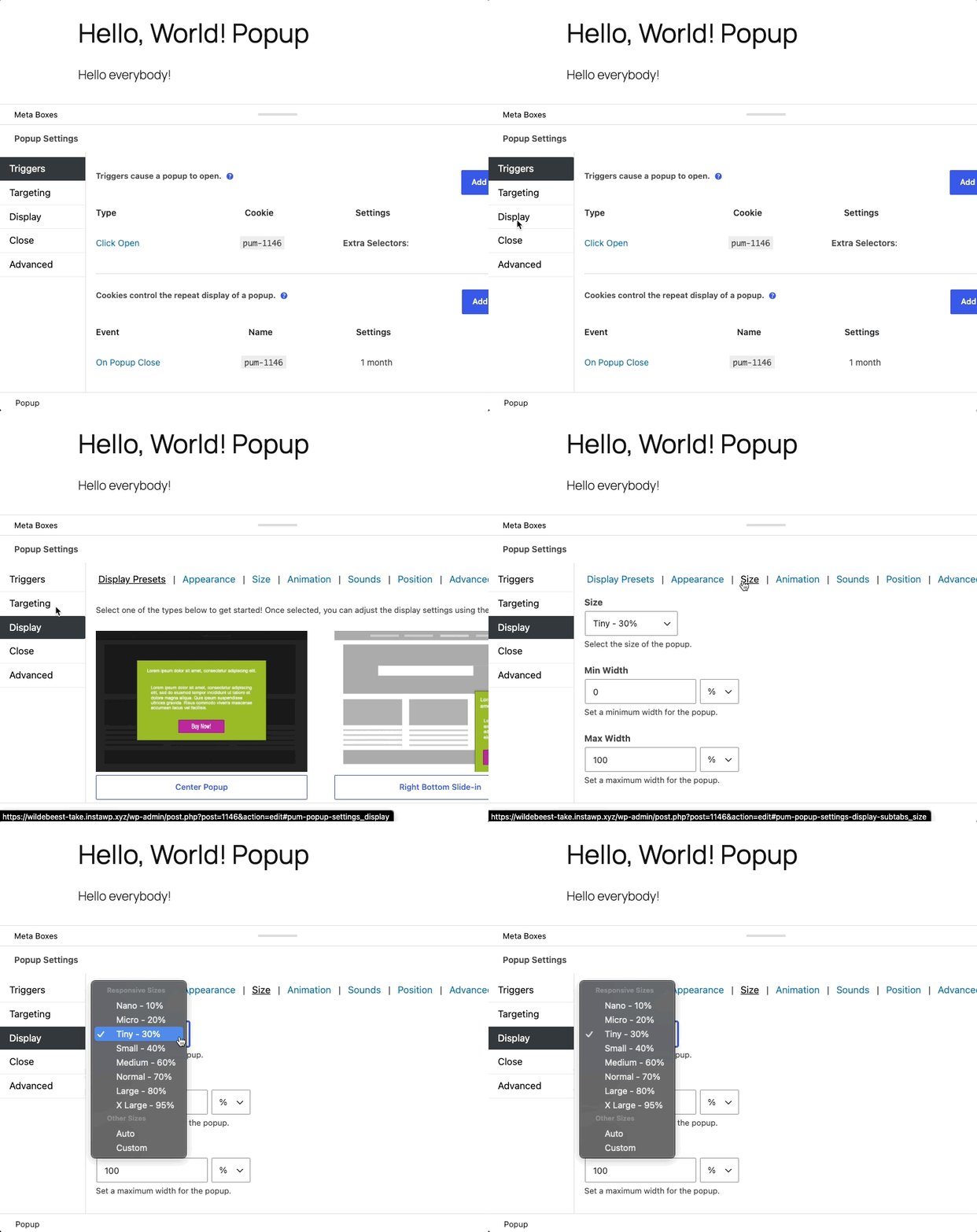
- Click the Display tab in the popup settings box.
- Find the Size section.
- Check that Size is set to a percentage-based option. New popups use this responsive setting by default.
- Click Save.
- Resize your browser window, or open your browser’s device toolbar, to see how your popup adjusts across screen sizes.
Why You Might Need Pixel, Em, or Rem Units
A percentage width works well for most popups, but it isn’t always the right fit. Here are a few flows where a fixed width makes more sense:
- Your popup holds a form, and the input fields look cramped or stretched unless the popup stays a specific width.
- Your popup contains an image, video, or embed that only looks right at a set size.
- You want a small, button-sized popup that never grows past a certain width, no matter how wide the screen is.
Popup Maker gives you three fixed-width units to choose from:
- Pixels (px): A fixed measurement that stays the same size no matter what. A 400px popup is always 400px wide.
- Em: A relative measurement based on the font size of the popup’s parent element. If the parent’s font size changes, your popup’s width changes with it.
- Rem: A relative measurement based on the browser’s root font size (usually 16px by default). Rem units scale with a reader’s font size settings, which makes them a solid choice for accessibility.
Example: A Fixed-Width Popup
Say you want a popup that’s always exactly 400 pixels wide, regardless of the screen size. Using 400px gets you there directly: it looks the same on a wide desktop monitor and on a narrow phone screen (though on the phone, it may stretch close to the edges of the viewport).
Now say a reader bumps up their browser’s default text size for easier reading. A popup set to 400px won’t budge. But a popup set to 25rem grows right along with it, since 25rem is calculated from the browser’s root font size (25 × 16px = 400px, by default). That’s the main trade-off: px gives you an exact, unmoving size, while rem (and em) flex with font settings.
Set Up a Fixed-Width Popup
- Open your popup’s settings box.
- Click the Display tab.
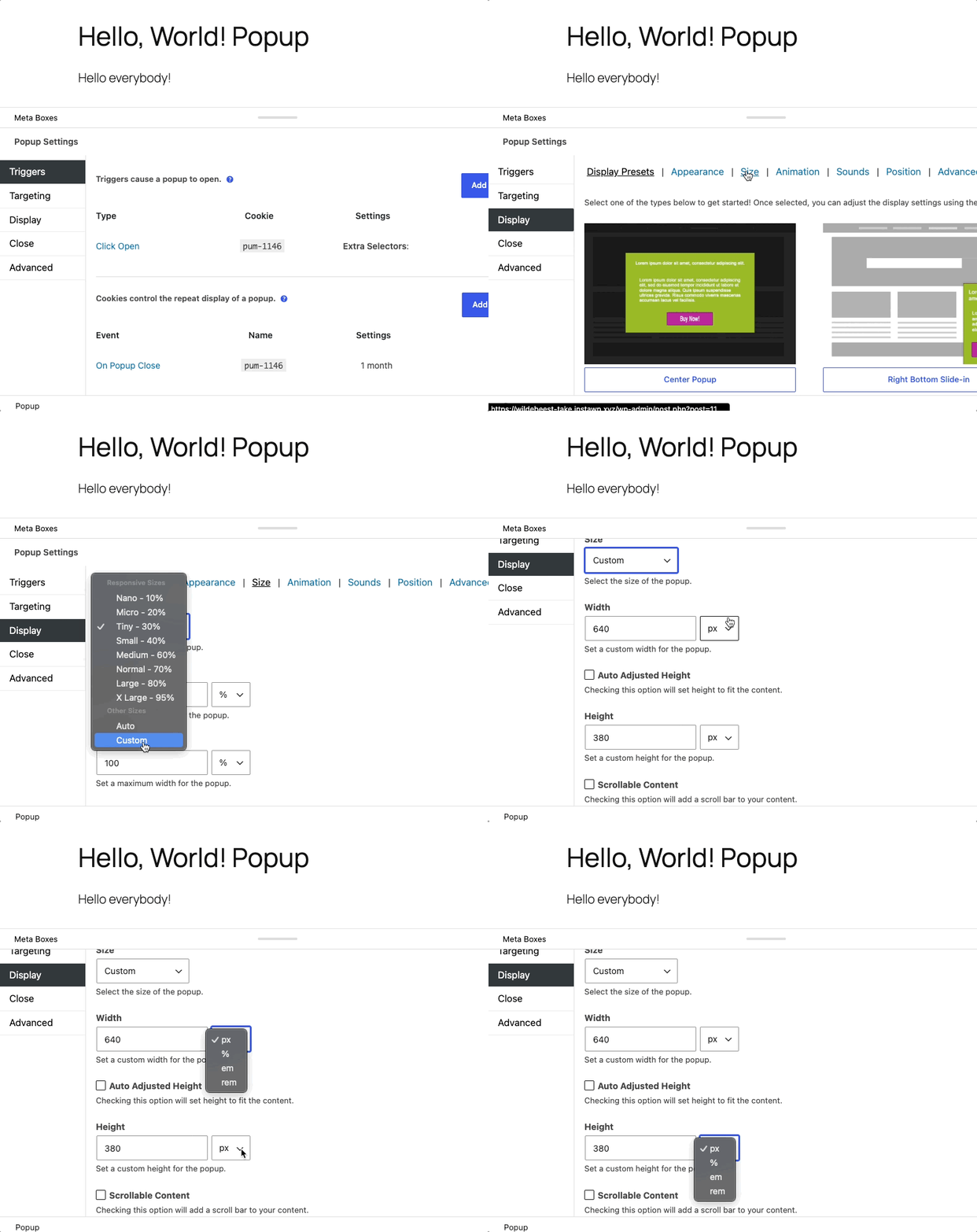
- Go to the Size section.
- Switch from a percentage-based width to a custom, fixed width.
- Enter your width value, then pick px, em, or rem from the unit dropdown.
- Click Save.
- Preview the popup on a phone-sized screen before you publish. A fixed-width popup doesn’t shrink on its own, so make sure it still fits comfortably on small screens.
Mobile Device Only Popups
To show a popup only on a mobile or tablet device, and keep it from showing on desktop screens, install the Advanced Targeting Conditions plugin extension.
A responsive, percentage-based popup gets you most of the way there, but it still shows the same popup, with the same content, on every device. The Advanced Targeting Conditions extension goes a step further: it lets you target popups specifically to mobile-sized devices, so you can show different popups to different screens instead of resizing one popup to fit all of them.
Take a popup menu, for example. It can look great on a desktop screen, but cramped and undersized on a mobile device.
If you’re a developer who wants more control than responsive sizing alone can give you, Advanced Targeting Conditions is worth a look. Its device conditions let you build a separate, purpose-fit popup for each breakpoint, such as a compact popup for phones and a roomier one for desktops, and show the right popup to the right screen automatically.


