Short answers to common questions about editing, copying, finding, and managing your popups. Click the links in each answer to dive deeper. Looking for a different topic? Browse all Frequently Asked Questions. If any terminology is confusing, check our Popup Maker Glossary of Terms.
Why Can’t I Edit My Popups Anymore?
The Block Editor is Now the Default
Starting with Popup Maker Version 1.21, the WordPress block editor is the default popup editor. This new default block editor might conflict with your theme, page builder, or plugins.
Steps for Switching Back to the Classic Editor
If you see a blank white page instead of an editor when you try to edit a popup, or you just want to switch back to the classic editor, follow these steps.
Step 1. From your WP admin dashboard, go to Popup Maker > Settings

Step 2. Click General, then click Use Classic Editor for Popups

Step 3. Click Save

If this doesn’t work, please contact us.
How Do I Edit My Popup’s Title Using the Block Editor?
Expand the Popup Title section in the popup panel settings area. Type your popup’s title into the TITLE field. Save your changes.
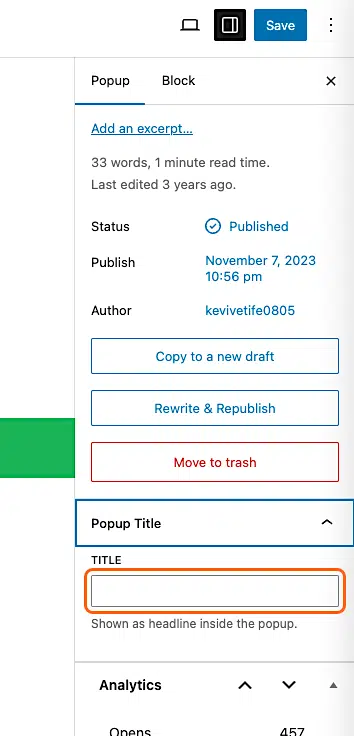
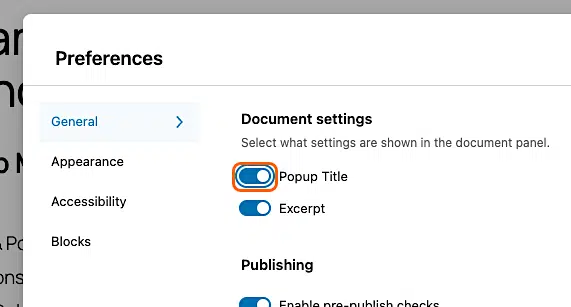
If you don’t see the Popup Title section in the popup panel settings area, click the options menu (3 vertical dots). Turn on the toggle next to Popup Title under General > Document settings.
How Can I Copy (Clone) My Popups?
Use a Duplicate Post Plugin
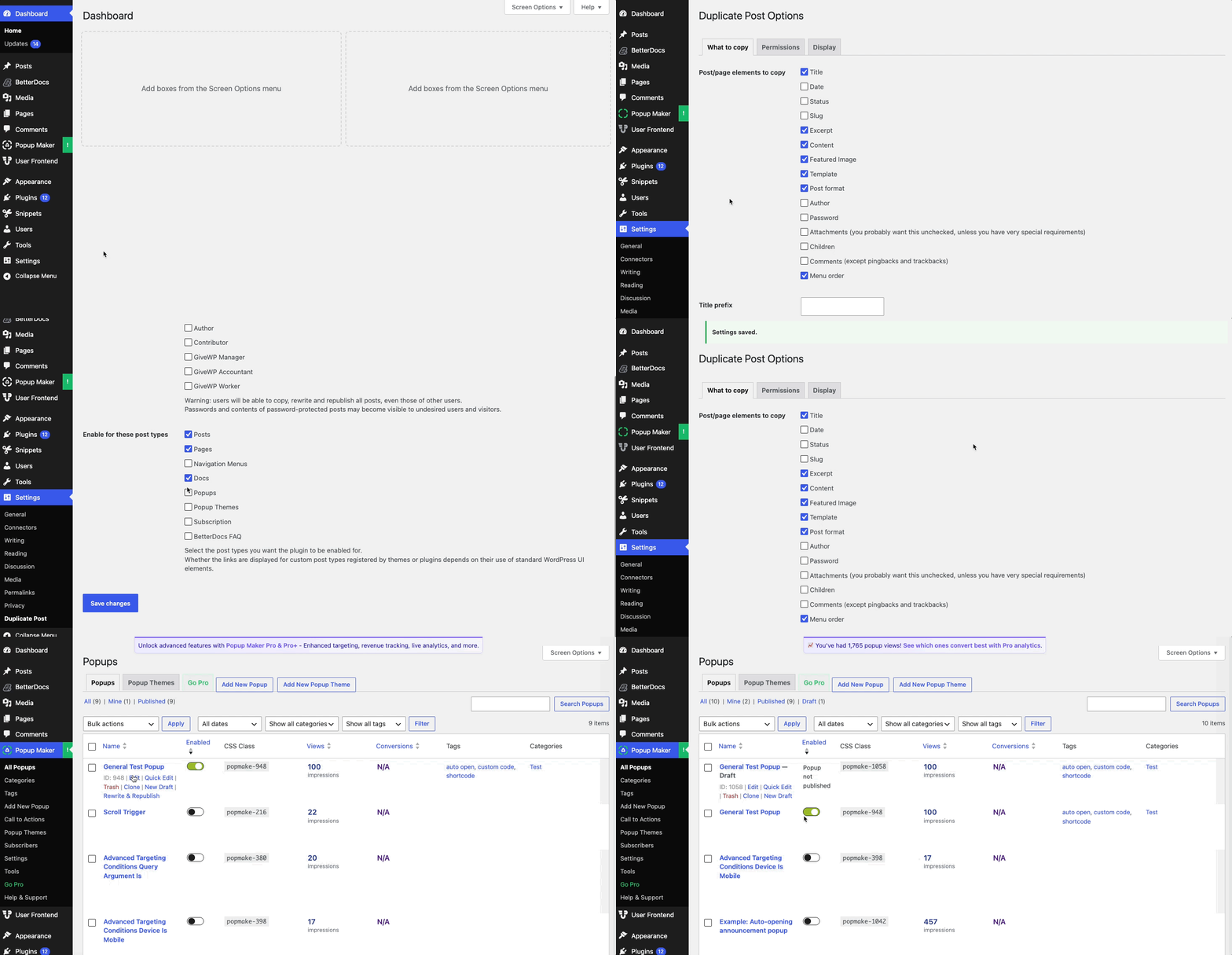
We recommend using a plugin such as Yoast Duplicate Post. After installing it, go to /wp-admin/ > Settings > Duplicate Post. Then, give the plugin permission to copy popups.
Once that’s done, go to your popups, and click Clone.
How Can I Find the Popup ID?
You can see your popup’s ID in 2 places: on the Popup Maker > All Popups page and on the Popup Editor’s page.
Follow our step-by-step instructions to see exactly where to find the popup ID.
How Can I Stop Popups From Loading Google Fonts?
- From your WordPress admin dashboard, go to Popup Maker > Settings > Misc > Assets.
- Check Don’t Load Google Fonts.
- Click Save.
- Flush all of your caches.

To learn why you’d want to stop popups from loading Google Fonts, read our Don’t Load Google Fonts doc.
How can I hide Popup Maker from non-admins?
There are 2 main options:
- You can search for a plugin that lets you edit your WordPress admin dashboard and menus.
- You can use custom code to call a built-in WordPress hook (PHP function) to remove Popup Maker from the admin side menu.
Using a Plugin
The not-so-great news is that there aren’t too many plugins that do this. So we can’t recommend any. And if you find one, you might need to pay for the feature to hide or edit a menu.
Visit the official WordPress Plugin Directory to start your search.
Note: To hide the Popup Analytics dashboard widget, you can use PublishPress Capabilities free version. Look for “Popup Analytics” under Capabilities > Admin Feature Restrictions > Hide Dashboard Widgets.
Writing Code
If you’re comfortable with using WordPress hooks (PHP functions), then this option is for you.
Below is sample code (from GitHub) that you can install in your child theme’s functions.php file or with a code snippet plugin.
Now you see it. Now you don’t.
In the demo video clip below, we have 2 browser sessions. In one session, we’re logged as an Editor. On the other session, we’re logged in as an Administrator. Here are the steps we take to make sure the code snippet works.
- First, we can see Popup Maker on the side menu while we’re logged in as an Editor.
- We switch over to our admin session and turn on the code snippet.
- When we switch back to the Editor session and reload the page, Popup Maker is gone.

The code sample uses the official WordPress remove_menu_page hook. Furthermore, the code only removes the menu item. The plugin is still there and accessible. If people know the URL to the plugin or feature you’re hiding, they can still access it.
Learn more about adding PHP to WordPress in our Getting Started With Custom PHP guide.
If you go the custom code route, here’s our full custom sample code disclaimer.


