The Time on Site popup trigger is one of the latest features in Popup Maker Pro. This help guide shows you how to add the Time on Site trigger to a popup.
First, let’s cover when to use the Time on Site trigger and how it differs from the basic Auto Open trigger.
Skip the intro. Just show me the step-by-step instructions!
When should you use the Time on Site trigger?
Add a Time on Site trigger to your popup when you want the following:
- The popup opens automatically (i.e., no need to reload the page, click on something, or go to another page).
- The popup displays only after your visitors have been browsing your site for a specific duration (e.g., 10 seconds, 30 seconds, 1 minute), regardless of how many pages they’ve seen.
Example Use Case: Engaged Visitor
Show a newsletter signup popup after a visitor has spent 60 seconds on your site.
The idea is that someone still browsing after a minute has shown genuine interest—they’re more likely to subscribe than someone who just landed on the page. You gave them time to learn more before asking them to follow.
How is Time on Site different from Auto Open?
There’s one key difference: total time on a website versus time on a page.
Total Running Time Spent on a Site
Time on Site uses cumulative time tracking. It starts keeping time the instant you land on the site and stops only after you leave (close your browser or tab).
For example, if you set a Time on Site trigger with 10 seconds, you can browse 5-10 different pages on the same site. When 10 seconds are up, the popup displays no matter how many pages you’ve visited.
Time on Site popup works best when you don’t have any targeting rules. Meaning, the popup can display on any page.
Best practice: Time on Site works well for popups that have little to no targeting rules.
Time Spent on a Page
Now, an Auto Open trigger starts keeping time when you open a page. Every new page you visit resets the auto-opening timer to 0.
Auto opening triggers are better suited for popups that use targeting rules.
Steps to Add a Time on Site Trigger
Here’s how you add a Time on Site trigger using the default settings.
1. Edit a popup
2. Click Add New Trigger in the Popup Settings below the popup editor
3. Click Time on Site in the dropdown
Best practice: Set up a popup cookie in your triggers to avoid repeatedly showing a popup to the same visitors.
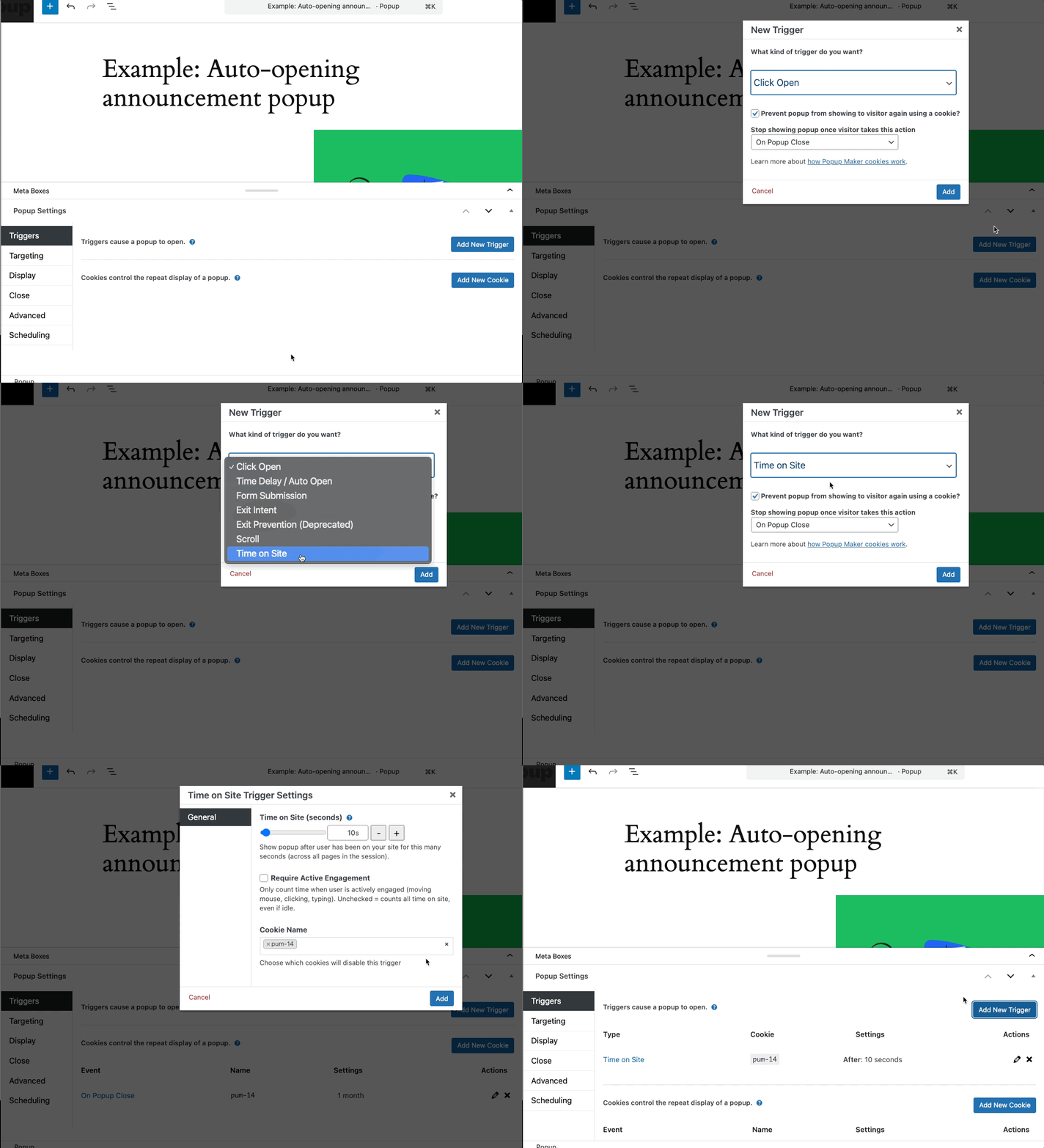
4. Click Add
This takes you to the trigger settings.
5. Click Add
This finishes adding the trigger and cookie to the popup.
6. Click Update to save your popup changes
Time on Site Trigger Demo
Here’s a demo of the result using a 10-second Time on Site popup trigger.
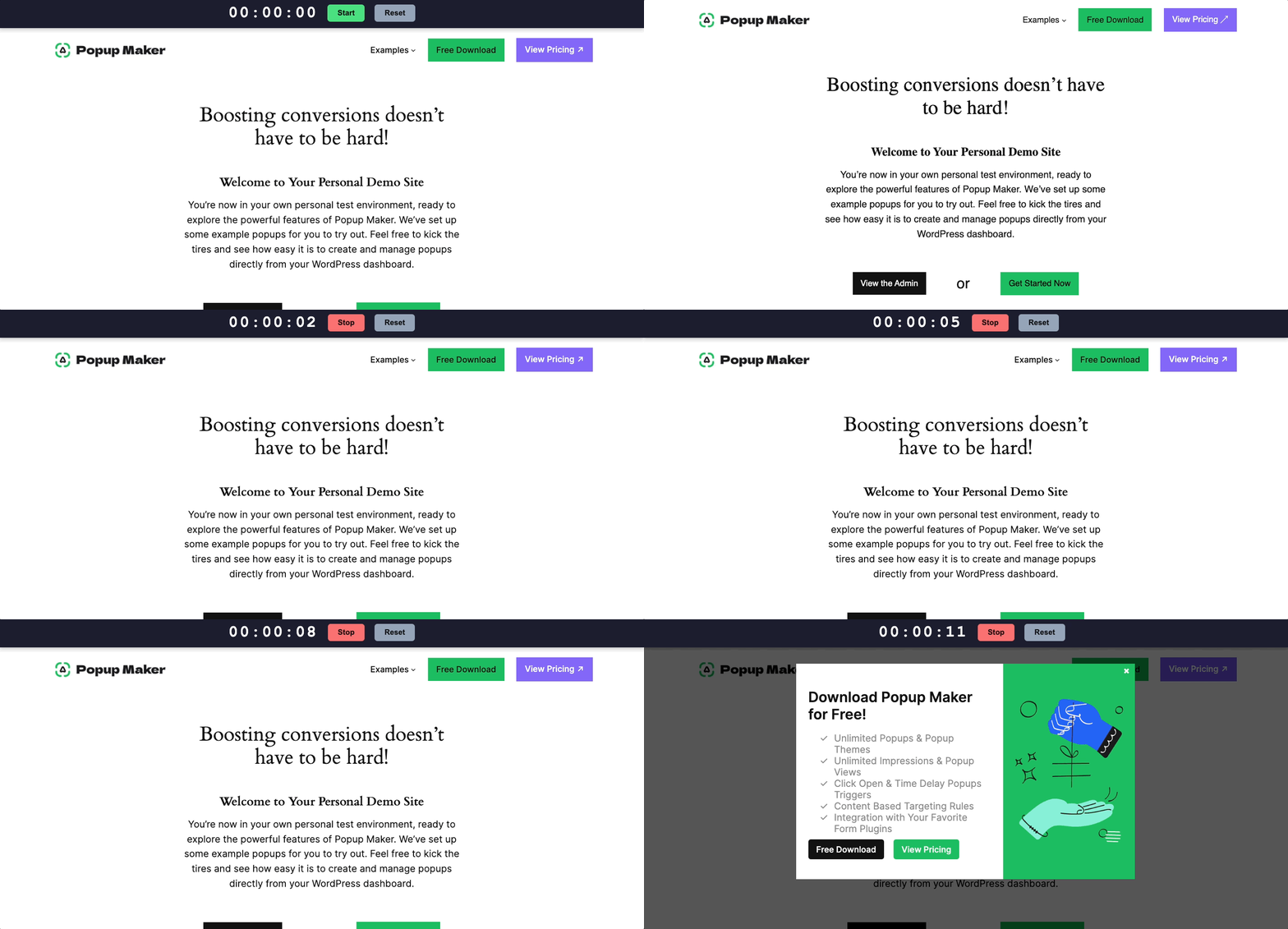
Note: We wrote the custom timer you see at the top of the page just for this demo. We also didn’t navigate off this page to keep the demo simple.


