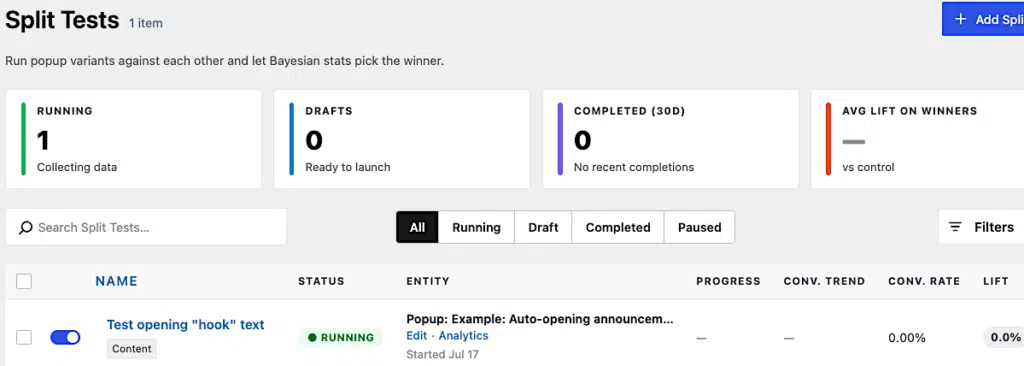
This guide shows you step-by-step how to use Popup Maker Pro’s built-in Split Test feature to create a Content split test.
Three Main Parts
There are 3 parts to creating a Content split test.
Part 1: Create the Split Test (but don’t start it)
1. Edit your popup using the block editor
2. Click Split Testing
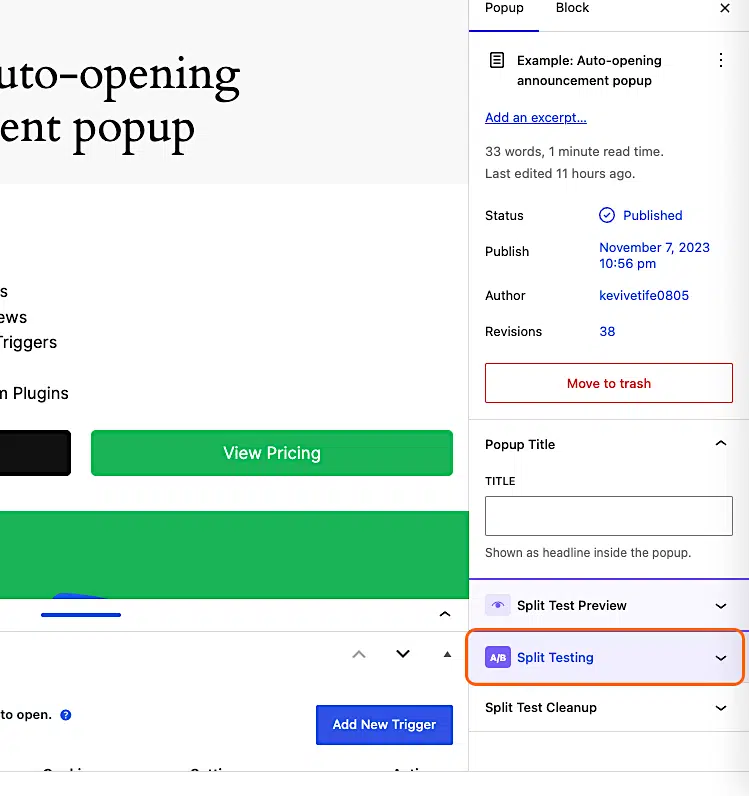
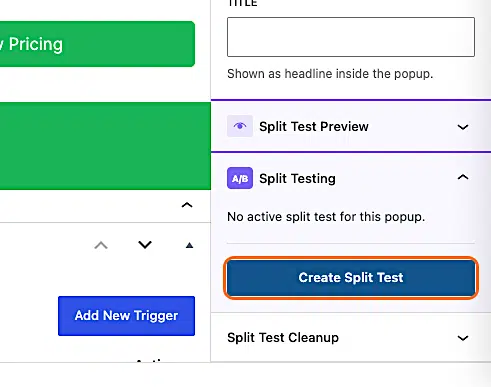
3. Click Create Split Test
4. Click Content
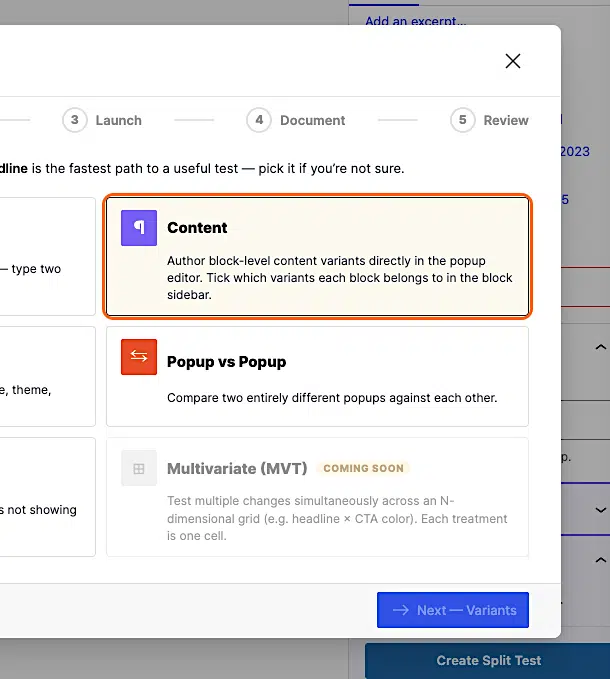
5. Click Next—Variants
Note: You can add more than 2 variants. To keep this guide simple, we’re only using 2 variants.
6. Name Variant A
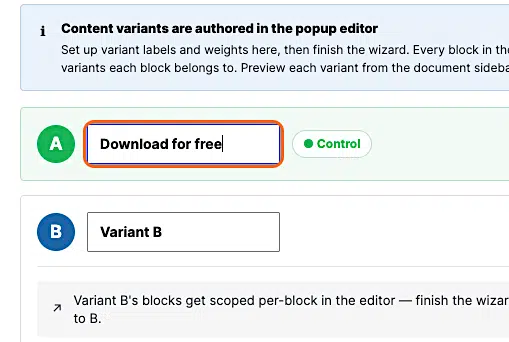
7. Name Variant B
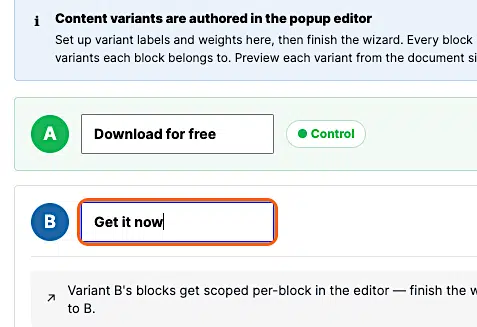
After you name your variants, click Next—Launch config.
8. Click Next—Document
To keep things simple, we’re going to accept all defaults here. Read our Split Test Cheat Sheet to learn more about the Launch settings.
9. Type a descriptive name
Enter an optional name for your test.
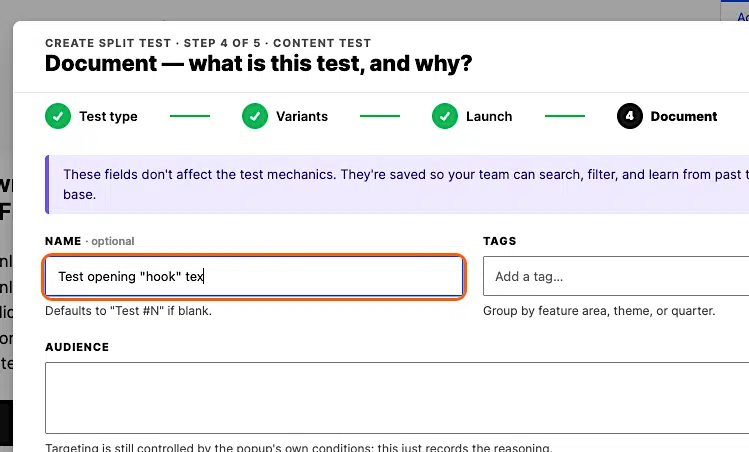
Then, click Next—Review.
10. Uncheck Start immediately after creation
Remember! We don’t want to start the test yet because we still need to scope our content variants. So uncheck the Start immediately after creation setting.
Make sure all the settings look right to you. Go back a step (or more) if you need to change anything. When everything looks good, come back to this step and click Create Test.
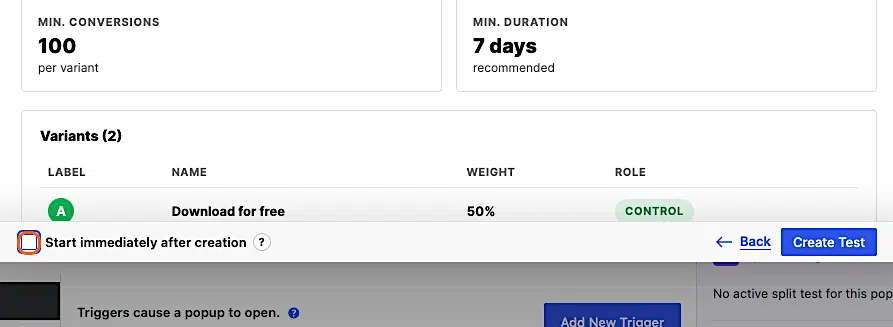
Popup Maker creates the test in DRAFT status. You can see your draft test from the main Split Tests admin page.

We’ll start the test after we set up our content variants.
Part 2: Scope the content variants
Now that you’re done creating the Content split test, it’s time to tell Popup Maker what content you want to test. You’ll do that by picking a block in the block editor and assigning (scoping) that block to a variant. You’ll scope 2 different blocks. One for variant A, and the other for variant B.
In our example, we’re going to duplicate our popup’s intro “hook” line and change the copy to read something different. We want to see which “hook” people like better.
Let’s go.
1. Duplicate an existing block
We want to try a couple of H2 headings to find out which one grabs people’s attention more.
In our example, our original H2 heading is our control or Variant A. So we duplicate that to save time.
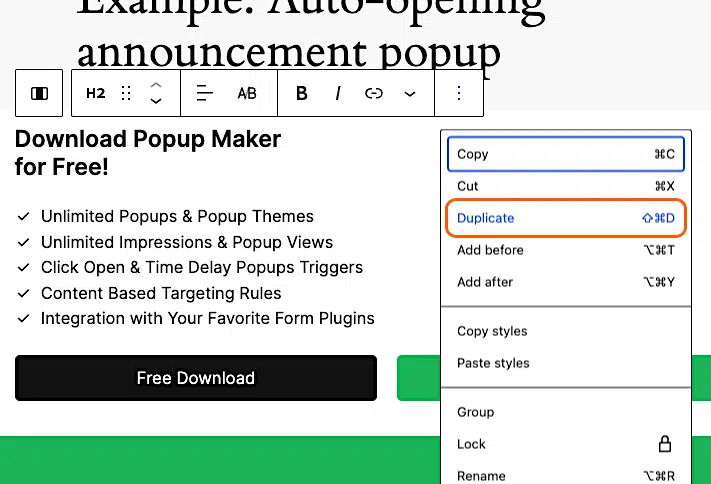
2. Edit the new block
Now, we can change the duplicate H2 to use the text we want to test.
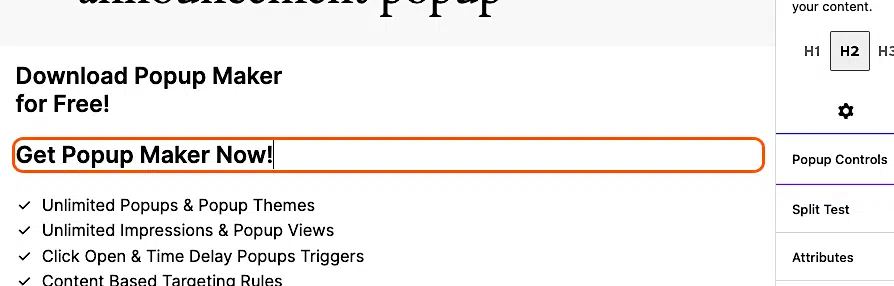
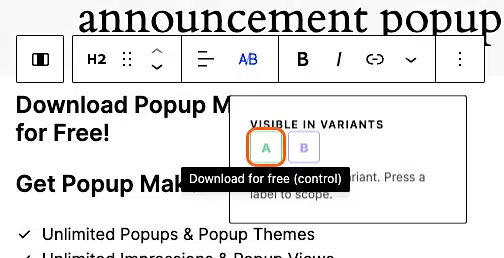
3. Scope Variant A
Click the original H2. Click A/B in the toolbar. Click A under VISIBLE IN VARIANTS.
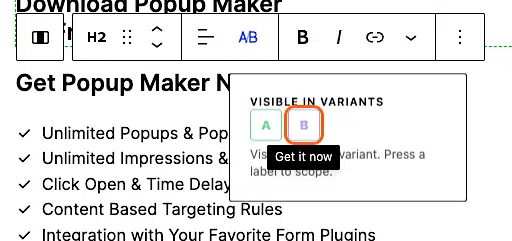
4. Scope Variant B
Click the new H2. Click A/B in the toolbar. Click B under VISIBLE IN VARIANTS.
So, we’re done setting up the split test and choosing our content variants. On to the last part for starting the test!
Part 3: Start the Split Test
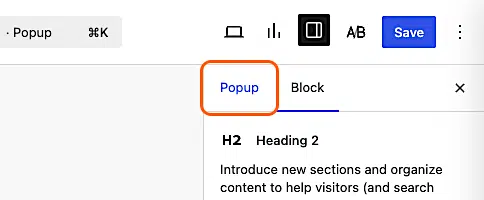
1. Click Popup in the editor sidebar settings
2. Click Start
Expand the Split Testing sidebar panel and click Start.
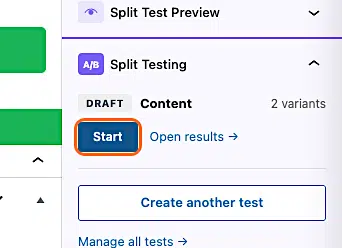
Clicking Start saves your popup changes and starts the split test. You’ll see the status change from DRAFT to RUNNING.
3. View your test’s latest stats
Head over to Popup Maker > Split Tests to view your test stats.